



Customizing your digital workspace is more than just a hobby; it is about optimizing your daily communication workflow. Since my first experience integrating Spotify with Discord via third-party tools, I have tested dozens of modifications to find the perfect balance of utility and style. This curated list of the best BetterDiscord plugins ensures you get the most out of your server while maintaining a seamless user interface.
In the first place, it would be worthwhile to understand what BetterDiscord is and what the BetterDiscord plugins aim to do. Put simply, the BetterDiscord app is an alternative to the Discord app and is preferred by users for the simple reason that it can be extensively customized as compared to the Discord app. The app facilitates peer-to-peer communication using Voice Over Internet Protocol.
As an experienced tech reviewer, I monitor the community weekly for new releases and security updates. These customizations do more than just change visuals; they foster community engagement and streamline accessibility. However, because new tools are released constantly, I prioritize plugins that demonstrate consistent developer support and positive community feedback to ensure your account remains secure and stable. But it must be noted that as long as the plugins do not create a situation of lawlessness, it is tolerated.
Of particular importance are the means to download and install a BetterDiscord plugin as locating the folder in the system that holds the BetterDiscord files. This would come in handy later on when more plugins have to be installed, as with modifying the pre-installed plugins as well.
Step-by-Step Guide: How to Install BetterDiscord Plugins and Themes
The BetterDiscord app is preferred by most people over the more traditional Discord software as it gives a better feel and can be customized using the number of plugins that are available for use.
For the younger generation, this facility to customize the plugin gives them a creative edge, as well as gives a sense of being together on the same page.
Steps to Install the Themes and Plugins of BetterDiscord
- Visit the homepage and download the latest version of the BetterDiscord Application.
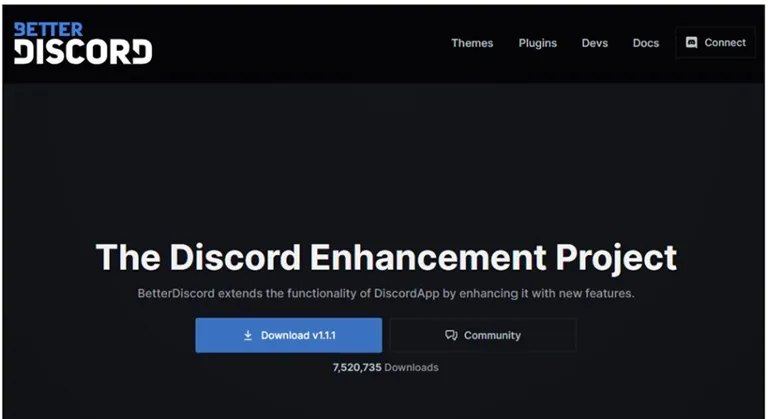
- Run the setup after accepting the user agreement.
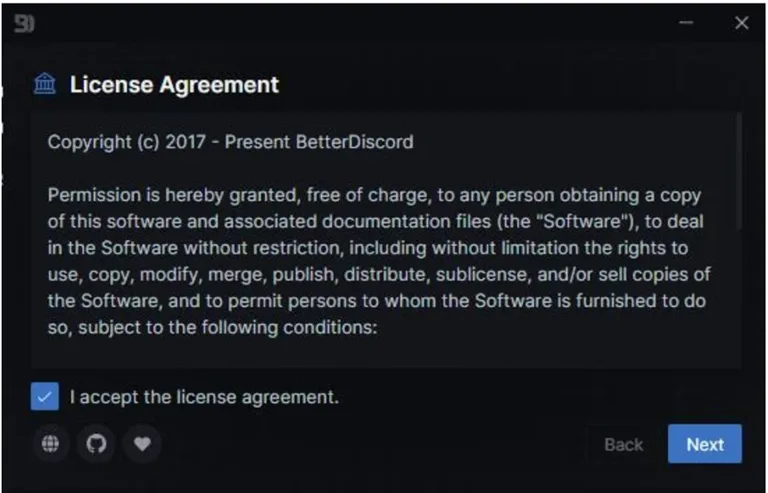
- Click on Install BetterDiscord
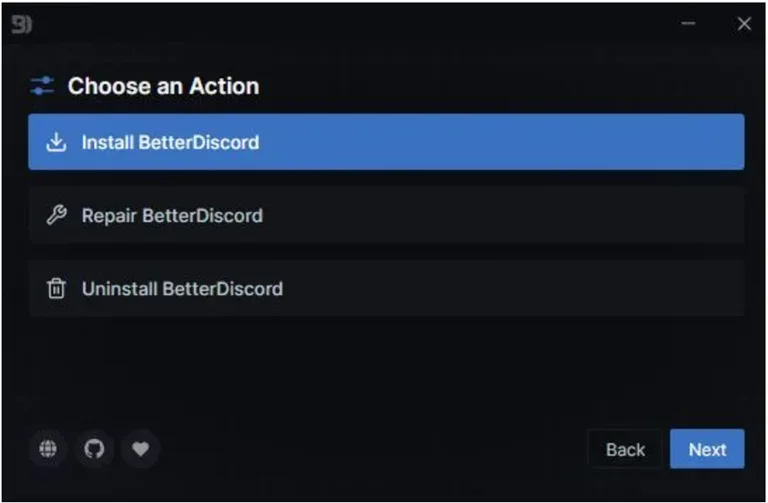
- Choose the directory where the original Discord app is installed.
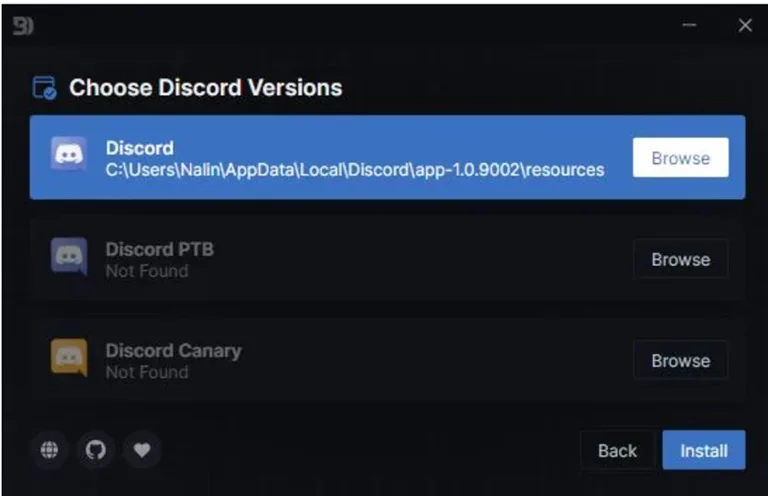
- Now the Discord app and the BetterDiscord app are linked to each other. It would be advisable at this point to restart the computer.
The next step is to install the BetterDiscord themes that need to be used. The following steps would see you through that.
- Visit the BetterDiscord themes and choose the theme that is to be downloaded and installed.
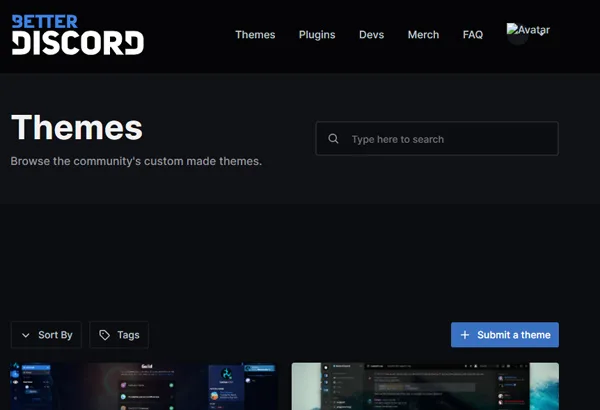
The folder, as detailed below, is chosen, and the downloaded plugin is copied there.
C:\Users\USERNAME\AppData\Roaming\BetterDiscord\theme2. Now return to Discord > User Settings > Themes and select the necessary theme. 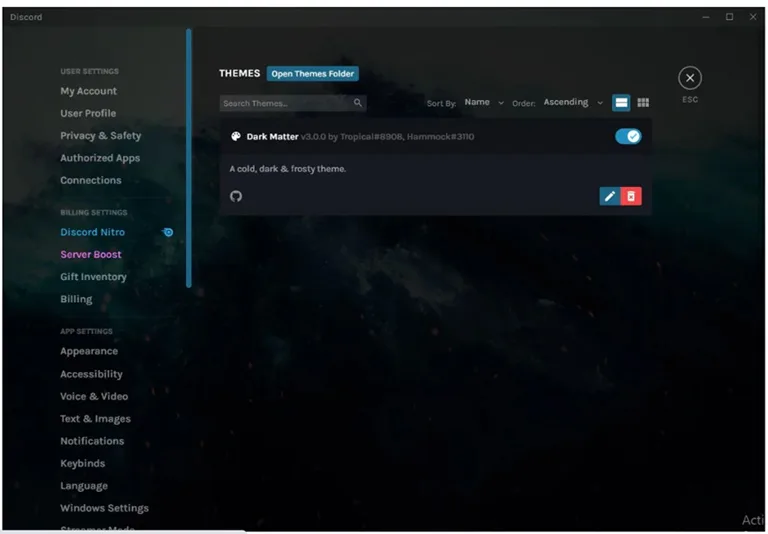
How To Find the BetterDiscord Themes and Plugins Folder on The Computer?
It is necessary to find the file location of the best plugins for BetterDiscord, as they can be called to use during installation, as well as any customization that might be done afterward. Transparency is vital when using third-party modifications. While these plugins offer incredible functionality, they technically fall outside Discord’s official Terms of Service. In my years of auditing software, I have found that sticking to reputable, well-known plugins significantly reduces risks. Always use these tools judiciously and stay informed on community safety guidelines to protect your digital presence.
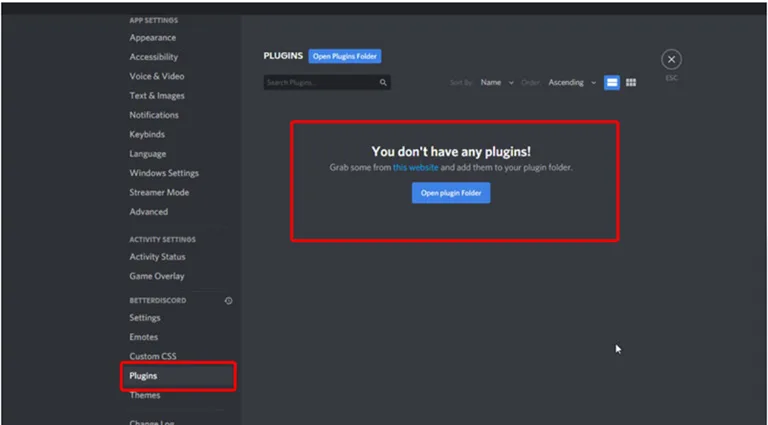
Finding the folder via the AppSetting
- Launch the Discord app
- Go to the app settings.
- Click on plugins.
- Select ‘Open Plugin Folder’
Finding the Folder Location by Following the Path to it.
If you have downloaded the Discord app from the official site and installed it according to the settings recommended on the site, then by default, the plugin folder would be located at the location given below.
E\AppData\Roaming\BetterDiscord\plugins22 Essential BetterDiscord Plugins for Power Users
1. Show Hidden Controls
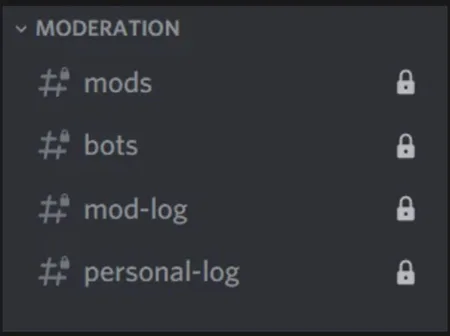
Show Hidden Controls is one of the more popular plugins for the Discord app. It basically exposes hidden channels in Discord. The possibility is that for the current role that you have chosen for Discord, it is possible that some of the controls are kept hidden. This best Discord plugin hack allows the user to unlock all the hidden controls in one go.
But the plugin does not allow the user to exchange messages on the server, which would still remain restricted to use.
2. Call Timer Counter Plugin
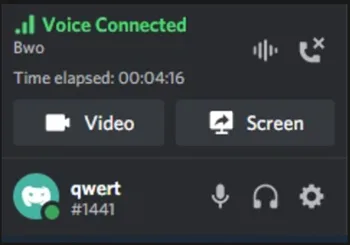
This is another one of those useful Discord plugins that allow the user to know how long they have been on a call. It would help those who spend a lot of time chatting or conversing on Discord to know how much time is being spent on each call. The plugin is of tremendous use for those folks who are on a metered internet connection. Once it has been installed, an icon called ‘Time Elapsed’ will be visible on the dashboard.
3. Spotify Controls Plugin
Few people realize that it is possible to integrate the Spotify app with Discord and BetterDiscord. This plugin does exactly that and is convenient to have around for those who are desirous of listening to music on the Discord app. It is possible to control the audio playback on the app.
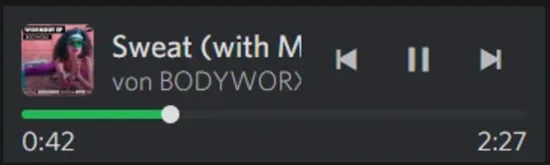
On adding the plugin, the user gets to see the extra controls right next to the Discord app and can be used to be informed of the singer, cover picture, and time elapsed.
4. Game Activity Toggle Plugin
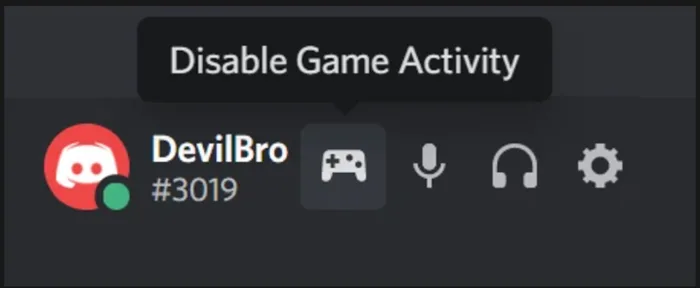
This particular BetterDiscord Plugin would tend to place a toggle button next to your profile on Discord. It allows the user to toggle between the game being played and can turn on and turn off the game at the click of the mouse button.
5. Invisible Typing Plugin
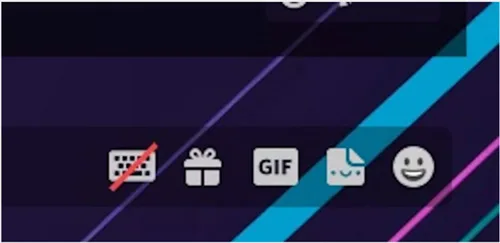
The Google Translate plugin helps translate chats that are not in English into the target language in real-time. There is a minimal time lag, and the operation is really quick to function. Essentially, what the plugin does is to help have a translation without having to copy-paste the text into Google Translate.
6. Better Role Colors Plugin
Here, the plugin makes it possible to change the colors of the text on BetterDiscord and Discord at the click of a button. It essentially makes the whole experience pleasant and enjoyable for most parts.
7. Badges Everywhere Plugin
This plugin displays the different badges that have been accumulated on the dashboard right next to the login page. It is more of a convenience that people can view their badges right next to their user names, and hence saves a lot of time that otherwise would have been spent trying to look for them.
8. Hide Disabled Emojis Plugin
For every user profile, there is a set of emojis that have been disabled with the BetterDiscord application. With this plugin, it is possible to hide the disabled plugin so that the space is freed up on the screen.
14. Account Details Plus Plugin
16. Friend Notification Plugin
18. Guild And Friend Removal Alerts Plugin
21. Better Formatting Redux Plugin
Frequently Asked Questions
How to Install Discord Plugins?
How to Install the BetterDiscord App on Windows and Mac?
Are Plugins Bannable on Discord?
Conclusion
The BetterDiscord plugins are a convenient way of customizing the Discord app in most instances without affecting the working of the original software. There is just the right plugin for every need, and it is for the user to explore and find the most suitable plugin for use.
Plugins have enhanced the application and use of the Discord application. It is thus to be seen as a positive development, and its judicious use is mostly recommended.

Hannah
I never cared much about betterdiscord but after seeing the spotify controls plug-in, I think I need it. thanks though!!
Gregory Gipson
this helped a lot since i didnt knew what plugins to chose from. thanks!!