



Your monitor entering power saving mode is a built-in safety feature designed to prevent screen burn-in and reduce energy consumption. While it is vital for hardware longevity, it becomes a major frustration when your screen goes black in the middle of a task or fails to wake up on startup.
This issue usually stems from a communication breakdown between your PC and the display. Whether it is a loose DisplayPort cable, an outdated GPU driver, or misconfigured Windows power plans, this guide provides a systematic approach to restoring your video signal quickly and safely.
Common Reasons Your Monitor Goes to Sleep on Startup
When a monitor enters power save mode immediately upon boot, it indicates a Handshake Error where the display detects no active synchronization signal from the GPU. As a hardware-level response, this often bypasses operating system settings, meaning the solution usually requires checking physical continuity or BIOS/UEFI configurations rather than just software tweaks.
So, if the monitor of your computer enters power save mode on startup, it’s mainly due to the following:
- Cables Are Not Connected Properly: The wires between your KVM switch and your computer are a bit loose. So, whenever you switch on your PC, your monitor will not get proper video signals from this switch.
- Malfunctioning Devices: Your monitor fails to receive video signals due to a broken or malfunctioning cable, external video adapter, motherboard video port, video card, or other devices connected to it.
- Disconnected Cable: The wire connecting to your monitor is either loose at one end or has been cut off at both ends.
How to Stop Your Monitor from Entering Power-Saving Mode
You can keep your monitor from going into power-saving mode by disabling the screen saver on your computer. Once the screen saver is disabled, you can use your computer without any fuss. Below, we’ve listed some methods to fix this problem.
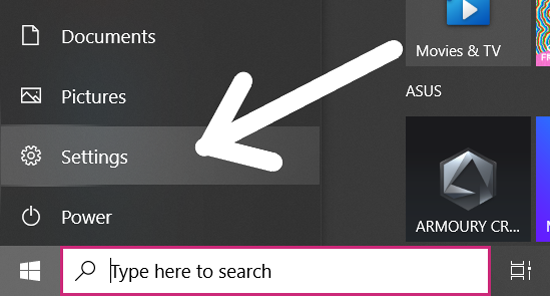
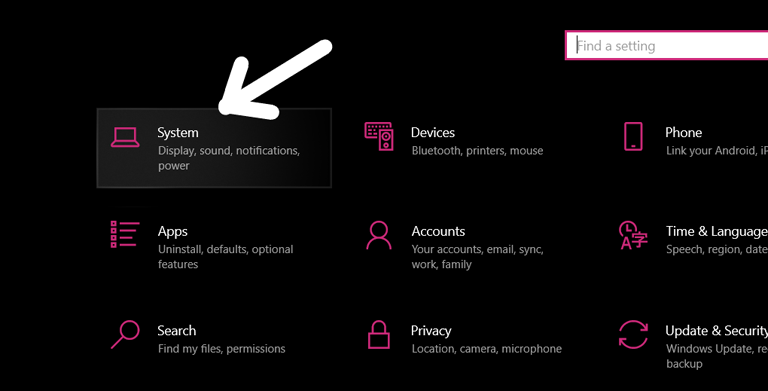
- Go to settings and tap on “System“.


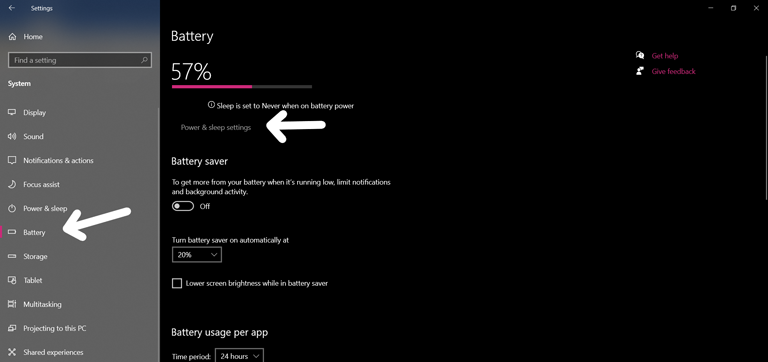
- Now, tap on “Battery” on the left-hand menu.

- Open the “Power & Sleep Settings” in the Battery menu.

- You’ll find “Screen” and “Sleep” options, and you have to choose “Never” for every option featured under them.
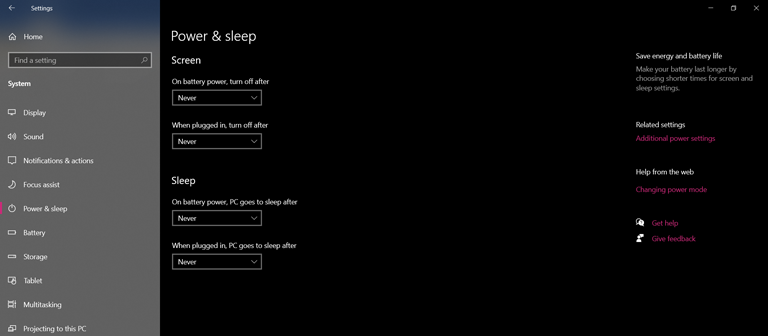
Viola! Now you know how to fix the monitor entering power save mode. You can choose from a range of time frames, such as 30 minutes to five hours. If you’re still experiencing the “monitor entering power-saving mode” issue, you should consider updating outdated drivers and checking your battery settings.
Follow the steps to change the power plan of your monitor:
- Open the Control Panel, and go to “Hardware and Sound“.


- Now, select “Edit Power Plan” under the Power Options.

- There, you need to change the settings and select “Never” for every option.

- Tap on “Save changes“, and you’re done.
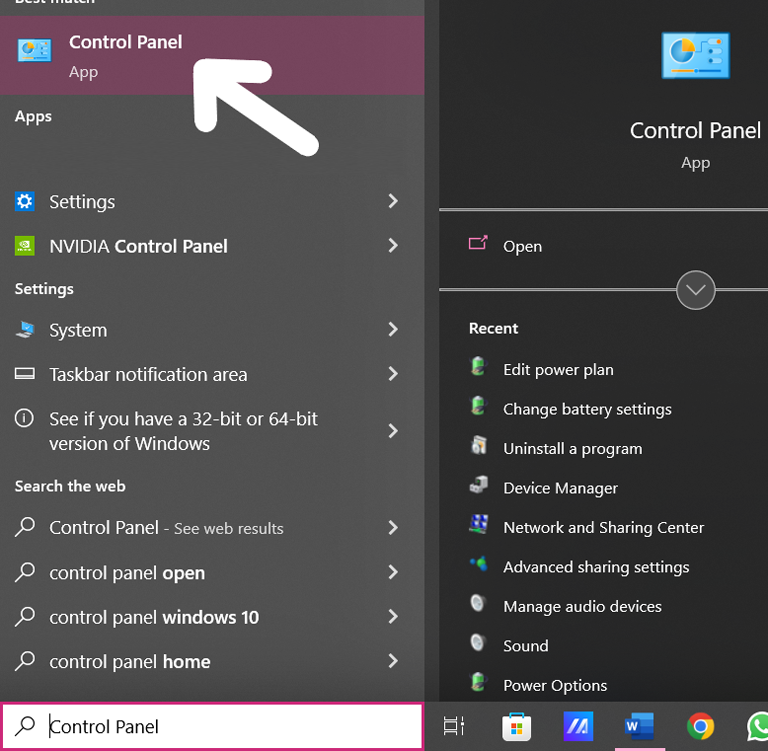
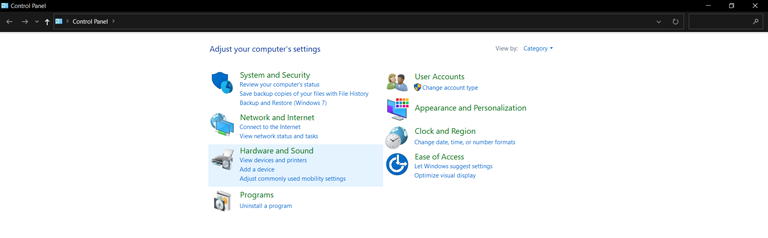
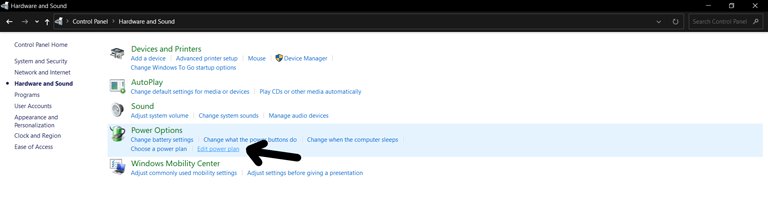
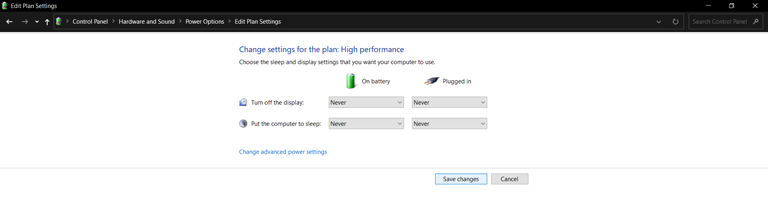
You can also prolong the time taken by your computer to switch into power-saving mode by selecting a time frame ranging between 30 seconds and five hours.
I set it to “Never” just so I wouldn’t be bothered with monitor power saving mode or the display turning off suddenly. And if you’re like me, then you should do this as well.
Steps to Fix Monitor Entering Power Save Mode On Startups
If your monitor keeps entering power-saving mode right after you turn on your computer, it may be due to a damaged motherboard battery. You’ll have to install a new motherboard battery to resolve this problem.
Before you replace the motherboard battery, ensure that the video cables are connected to the correct port, that the RAM is working properly, and that the CMOS has been set to the correct configuration. Here’s how to replace a damaged motherboard battery:
- First, disconnect all cables attached to your computer, apart from the power cable.
- Now, take out the power cable, and then hit the “Power” button featured at the front of the computer.
- Unscrew all the screws on the computer’s back and remove the top tray by sliding it towards yourself.
- Take out the battery that looks like a bigger version of the ones found in watches. Ensure you mark the front side of the battery to avoid any confusion. Now, replace the battery with a new one with similar specifications to the original.

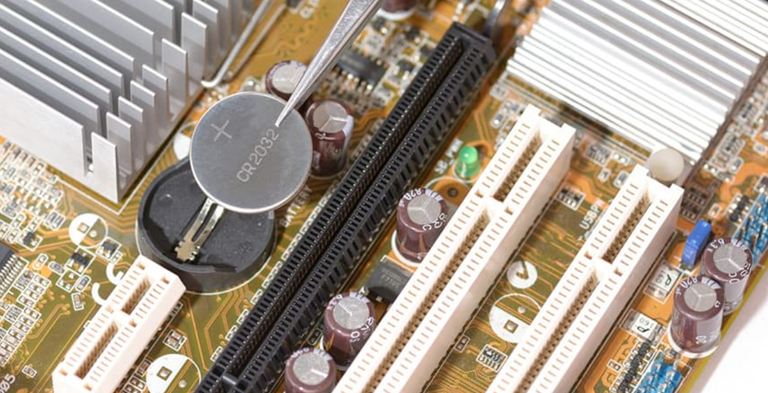
- Proper battery orientation is critical during a CMOS replacement to maintain the electrical circuit and prevent potential component damage.
- Always ensure you are grounded using an anti-static wrist strap when touching the motherboard.
- Once the new CR2032 battery is seated, secure the chassis and reconnect your peripherals to reset the hardware handshake.
This should resolve the “monitor entering power-saving mode on startup” issue.
Troubleshooting Guide: Computer Stuck in Power Save Mode Loop
Sometimes your computer might get stuck while running in power-saving mode and won’t switch on due to changes in its configuration. This issue might arise due to an error in its original configuration or a corrupted driver.
Here’s how to fix this issue quickly:
- First, shut down and restart your computer. When you do it, keep hitting the F8 key until you enter safe mode.
- Now, choose the “Last Known Good Configuration” option present on the screen.
- Click on the “Apply” button and reboot your computer to see if the issue is resolved.
Frequently Asked Questions

Why Is the Monitor Entering Power Save Mode?
A monitor may enter a power-saving mode for a variety of reasons, such as a problem with your window display settings or if you leave it idle for a few minutes. Although a monitor going into power-saving mode has the sole purpose of conserving energy. It does not affect the performance of your monitor, but it does affect all other components on your computer. So, if your monitor keeps entering the power-saving mode, try troubleshooting this error.
Is Power Saving Mode Good for the Monitor?
The power-saving feature is good for your monitor as it helps you save energy. Although it’s not an efficient way, this feature does reduce the power consumed by LCDs. You can save a lot of energy if you use your monitor for longer. However, this feature has one downside: it makes switching on/off your monitor a bit annoying, especially when you’re in a hurry. That means your monitor will take a while to turn on and off.
The Bottom Line
If you keep experiencing the “monitor entering power-saving mode” error on your computer, don’t worry! There are quick fixes you can try to resolve this issue in no time, such as:
- Changing Power and Sleep Settings to “Never”.
- Edit the power plan and set it to “Never”.
Hopefully, this guide has helped you in every way possible to stop your monitor from entering the power saver mode. Were you able to stop your monitor from entering power-saving mode? If so, share your experience in the comments below!

Dena
There’s no way I’m opening my motherboard tho..
Pearly
You should definitely go for a professional to open and check your motherboard if you don’t want to do it yourself.