

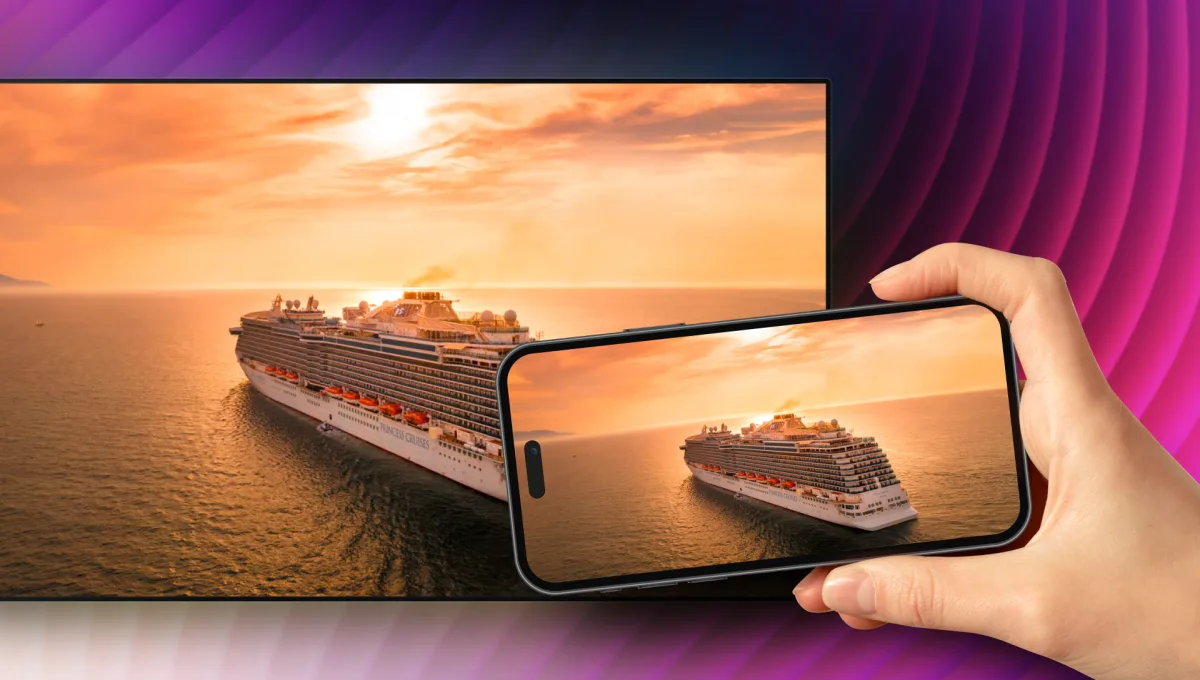

You have a video on your iPhone that you want to watch on a bigger screen. Maybe it’s a clip from your last vacation, a movie trailer someone sent you, or a video saved in your photo library. The content is already on your phone, but watching it on a small display isn’t always the most comfortable option.
An iPhone mirroring app can help you display content from your phone on a compatible television without connecting a physical cable. Depending on the app and the devices you use, you can mirror your screen, share photos, show presentations, or cast supported media to your TV.
However, wireless mirroring isn’t identical on every device. Some televisions support Apple’s AirPlay, while others require a compatible streaming device or a third-party app. Understanding these differences makes it easier to choose the right method and avoid common connection problems.
What Is an iPhone Mirroring App?
An iPhone mirroring app allows you to display your phone’s screen on another device, such as a compatible Smart TV. Instead of asking everyone to gather around your phone, you can show the same content on a larger display.
For example, imagine you’re visiting friends and want to share photos from a recent trip. Passing your phone around works, but displaying the pictures on the living room TV makes it easier for everyone to see them. The same applies to presentations, personal videos, and other content you want to share with a group.
The exact features depend on the app. Some solutions focus on mirroring the entire screen, while others let you cast photos or video files without displaying everything happening on your phone.
An iPhone mirroring app can be especially useful when your television doesn’t offer the built-in wireless connection method you expected. Before choosing one, though, you should check which devices and connection technologies it supports.
How Does iPhone Screen Mirroring Work?
Screen mirroring typically uses a wireless connection to transmit your phone’s display to a compatible receiving device. In many setups, your iPhone and TV need to be connected to the same Wi-Fi network.
Once the connection is established, the TV displays the content shown on your phone. Depending on the method, this may include photos, menus, presentations, and compatible video playback.
There are several ways to achieve this.
Using Apple’s AirPlay
AirPlay is Apple’s wireless technology for sharing content with compatible devices. If your television supports AirPlay, you may be able to mirror your iPhone through the built-in Screen Mirroring control in iOS.
To try it, connect your iPhone and compatible TV to the appropriate network, open Control Center on your phone, tap Screen Mirroring, and select your television from the available devices. Follow any prompts displayed on the screen.
This is a convenient option when your TV supports AirPlay and appears in the device list. However, not every Smart TV includes this feature.
Using a Third-Party Mirroring App

If your TV doesn’t support AirPlay, a third-party app may provide another way to connect your iPhone to a compatible television or streaming device.
These apps can support different connection technologies, so compatibility matters. An app designed for Chromecast, for example, won’t necessarily connect to every television simply because the TV has Wi-Fi.
One option to consider is DoCast, an app for iPhone and iPad that supports screen mirroring and media casting to compatible devices.
Before installing an app, check its supported devices and connection requirements. This helps you avoid downloading a solution that won’t work with your particular TV.
How to Connect Your iPhone to a TV With DoCast
Suppose you have a video on your iPhone and want to display it on your television without using an HDMI cable. The first step is to determine whether your TV supports the connection method you plan to use.
DoCast provides screen mirroring and media casting options for compatible TVs and streaming devices. Here’s how to approach the setup.
Step 1: Check Your TV’s Compatibility
Start by identifying your television’s make and model. Check whether it supports AirPlay or another wireless connection method compatible with the app.
Some TVs support wireless mirroring directly, while others may require an external streaming device. The availability of features can vary between models, even within the same manufacturer’s product range.
It’s worth checking this before moving on to the next step.
Step 2: Connect Your Devices to Wi-Fi
For connection methods that rely on the local network, make sure your iPhone and TV or streaming device are connected to the same Wi-Fi network.
If you use a guest network, hotel Wi-Fi, or a router with client isolation enabled, the devices might not be able to discover each other. In that case, check the network settings or follow the connection instructions for your particular setup.
A stable connection also helps reduce interruptions during mirroring.
Step 3: Install and Open DoCast
Download DoCast from the Apple App Store and open the app on your iPhone.
Follow the on-screen instructions and select your TV or compatible streaming device when it appears. You may need to grant the app permission to access your local network so it can discover nearby devices.
If your TV doesn’t appear, double-check the Wi-Fi connection and confirm that your device is supported.
Step 4: Start Mirroring or Casting
Once your devices are connected, choose the feature that matches what you want to do.
If you want to display your phone’s screen, use the screen mirroring option and follow the prompts to begin the session. If you only want to show supported photos or video files, media casting may be a more convenient choice.
After the session starts, you can view the selected content on your TV. When you’re finished, stop the session through the app.
The exact steps and available options depend on your TV, streaming device, and the connection method supported by your setup.
Screen Mirroring vs. Casting: What’s the Difference?
Screen mirroring and casting are often discussed together, but they serve slightly different purposes. Knowing the difference can help you choose the most convenient way to display content from your iPhone.
Screen Mirroring
Screen mirroring displays your phone’s screen on the TV. It’s useful when you want to show photos, navigate through an app, demonstrate something on your phone, or present information to other people.
Because the TV mirrors your display, notifications or other on-screen activity may also become visible. Consider enabling a Focus mode or turning off notifications before sharing your screen in front of an audience.
Media Casting
Casting sends supported media to a compatible receiving device rather than necessarily reproducing everything on your phone’s display.
For example, if you want to show a supported video or a collection of photos, casting may offer a more direct way to do it. The precise behavior depends on the app, the media format, and the receiving device.
DoCast offers both screen mirroring and media casting, so users can choose an appropriate method for their content and setup.
One limitation is worth keeping in mind: some streaming services restrict screen mirroring or external playback for protected content. If a video from a subscription service doesn’t appear correctly, check the service’s supported playback options rather than assuming the connection itself is faulty.
What to Look for When Choosing an iPhone Mirroring App
Not every mirroring app offers the same features or supports the same devices. Before installing one, consider a few practical factors.
TV and Device Compatibility
Compatibility should be your first consideration. Check whether the app supports your TV brand and model or the streaming device connected to it.
A television being labeled as a Smart TV doesn’t guarantee that it supports every wireless mirroring technology.
Ease of Setup
A useful app should provide clear connection instructions and make it easy to identify available devices. Straightforward setup is particularly important if you only plan to mirror your screen occasionally.
Look for an app that explains what to do if the TV doesn’t appear or the connection fails.
Screen Mirroring and Casting Options
Think about what you want to display. If your main goal is to share presentations or show your phone’s interface, screen mirroring is the relevant feature.
If you mostly want to display supported media files, casting may be sufficient. An app that offers both options can be useful if your needs vary.
Image Quality and Connection Stability
The quality of wireless mirroring depends on several factors, including your Wi-Fi network, the receiving device, and the app’s available settings.
A weak or congested network may cause delays, stuttering, or interruptions. If playback isn’t smooth, try moving closer to the router, reducing network congestion, or restarting the connection.
Pricing and App Limitations
Check the app’s pricing, feature availability, and any usage restrictions before relying on it for a particular task.
It’s also important to distinguish between features that work with compatible local media and those that may be limited by streaming platforms’ content protection rules.
Reviewing these details in advance helps you choose a solution that suits your actual needs.
Troubleshooting Common iPhone Mirroring Problems
Even when you’re using a compatible app, the connection may not work perfectly on the first attempt. Fortunately, a few basic checks can resolve many common problems.
Your TV Doesn’t Appear in the App
First, check that both devices are connected to the same Wi-Fi network if required by the connection method. Make sure the TV is turned on and that the app supports your device.
You should also check whether your router separates wireless devices into different networks or prevents them from communicating with each other.
The Connection Keeps Dropping
An unstable wireless connection can interrupt screen mirroring. Move your devices closer to the router if possible, reduce network congestion, and try again.
Restarting the app or television may also help resolve temporary connection issues.
The Video Appears on the Phone but Not on the TV
Some apps and streaming services restrict external playback because of digital rights management. This means that a video may play normally on your iPhone but not appear correctly during screen mirroring.
Check whether the service supports playback through your TV or streaming device. When possible, use its official TV app or another supported playback method.
The Picture Looks Delayed or Choppy
Wireless mirroring can introduce some delay, and performance depends on your network and devices. If the image stutters, try closing bandwidth-intensive apps, improving your Wi-Fi signal, or adjusting the available mirroring quality settings.
Keep in mind that screen mirroring may not be ideal for every use case, especially when minimal latency is essential.
When Is an iPhone Mirroring App Most Useful?
An iPhone mirroring app can be useful in several everyday situations.
- Sharing photos with family: Display vacation pictures or videos on a larger screen instead of passing your phone around.
- Watching personal videos: View supported content stored on your iPhone or iPad on a compatible television.
- Presenting information: Show slides, documents, or other visual content to a group when the apps and devices involved support it.
- Demonstrating an app: Display your phone’s interface when explaining how a feature works.
- Using a TV without AirPlay: Explore alternative wireless connection methods when your television doesn’t support Apple’s built-in mirroring technology.
The best option depends on the content you want to display, the TV you own, and the connection methods available to you.
Final Thoughts
An iPhone mirroring app can make it easier to share content from your phone on a larger screen. Whether you’re showing photos to friends, presenting information, or trying to watch a supported video on your TV, wireless mirroring can be a convenient alternative to connecting cables.
The key is to check compatibility before getting started. AirPlay is a straightforward choice for supported devices, while third-party apps can offer additional connection options for compatible TVs and streaming devices.
If you’re looking for an alternative way to mirror your iPhone screen or cast supported media, DoCast is one option to explore. You can review its features and compatibility information on the official DoCast website or download it from the Apple App Store.
By choosing a method that fits your devices and understanding the difference between mirroring and casting, you can make sharing content from your iPhone a much simpler experience.

Leave a comment
Have something to say about this article? Add your comment and start the discussion.