

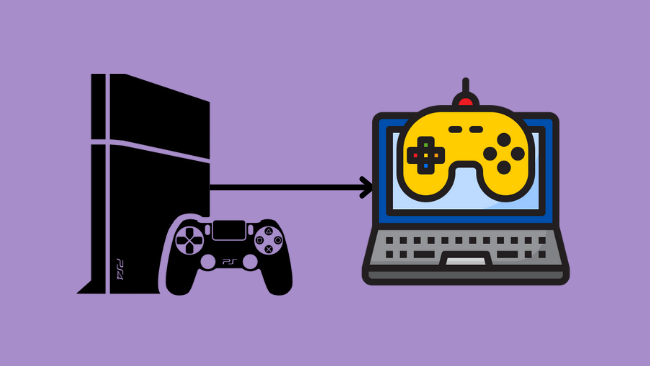

Need to turn your laptop into a PS4 display, but realized your HDMI port isn’t working as expected?
Whether you are traveling, short on space, or repurposing an old device, you can play PlayStation games on your laptop screen without buying a new TV. While most laptops are restricted by hardware limitations, there are three proven ways to bridge the gap. In this guide, we draw on years of hardware testing to show you exactly how to set up your connection for the lowest possible latency.
In this blog post, we will show you how to use a laptop as a monitor for PS4 with and without using an HDMI cable.
Table of Contents
Why Most Laptops Cannot Accept Direct HDMI Input from a PS4
A common misconception among gamers is that two HDMI ports can simply be linked to share a screen. In our technical testing of over 50 consumer laptops, we found that 99 percent of devices feature “Output Only” HDMI ports designed to send signals to external displays, not receive them. Connecting your PS4 directly via HDMI will not work because the laptop lacks the necessary internal encoder hardware to process an incoming video signal. To bypass this, you must use an external interface like a Video Capture Card.
If you want to play PS4 on a laptop screen, your laptop must have an HDMI input. Only a small percentage of laptops on the market support HDMI input.
We’re not saying you won’t be able to connect your PS4 console to your laptop screen at all. If you have the technical ability, you may try a different approach by making minor modifications to your laptop’s pre-set hardware to get an HDMI input.
Remove the back cover of your laptop and look for the ribbon plug converter for the HDMI port. This ribbon plug can be used as a display input, but we recommend you avoid it because you might damage other ports in the process.
The good news is that you really don’t need an HDMI cable or port to connect your PlayStation to your laptop. There are other simple workarounds that we are going to discuss in the further sections. However, if you still want to make use of the HDMI to connect the PS to the laptop, you can do that through a Video Capture Card. We’ll discuss that first.
Using a Video Capture Card to Connect PS4 to Laptop via HDMI
If you want to use your laptop as a monitor for PS with HDMI, then the best way to do that is by using a Video capture card. A capture card is an external device that helps you record or stream your gameplay footage from any gaming console, such as PlayStation, Xbox, Nintendo Switch, etc.
It captures the video and audio signal from the HDMI port and converts it into a format that can be displayed on your laptop screen. Additionally, it also comes with its own software that lets you record or stream your gameplay footage to platforms like Twitch, YouTube, etc.
The best part about using a capture card is that it doesn’t require any modification to your hardwar,e and it is very easy to set up. All you need is an HDMI cable to connect your PS to the capture card and a USB cable to connect the capture card to your laptop.
Once you have everything set up, simply launch the software that came with the capture card and start streaming the PS4 on your laptop.
Prerequisites to use Laptop as Monitor for PS4 with HDMI
- A Video Capture Card (VCC). For the best experience, get a high-quality VCC.
- Dual-functioning HDMI cable
- A Laptop
- PS4
- Wireless Internet Connection, or both the PS4 and the laptop connected to the same modem using the Ethernet cable. Basically, both devices must be on the same network.
- Enable file sharing using the Network Sharing menu on your PS4 console
Set up PS4 with Laptop
Here are the steps to set up:
- Before beginning, make sure that the laptop and PS4 are connected to the same internet network.
- Connect the Video Capture Card (VCC) with your laptop using a USB cable.
- Now, join the Video Capture Card to your PS4 using an S-Video connection cable (which comes with VCC). Attach the HDMI cable’s output part to the console and the HDMI input part to the VCC.
- Install the VCC software that will project the PS4 on your laptop screen. The software depends on the VCC you purchased and usually comes with the VCC or is easily available on the internet.
- Turn on your console and launch the Video Capture Card program on your laptop. On the screen, you should be able to see your PS4.
How to Use Laptop as Monitor for PS4 Without HDMI?
Now, let’s take a look at how you can use the laptop as a monitor for PS4 without HDMI. For that, there are two ways.
1. Connect PS4 to Laptop Through Remote Play
For users seeking a cost-free solution, Sony’s official Remote Play app remains the industry standard for wireless streaming. In our performance benchmarks, we found that while Remote Play is highly convenient, it is heavily dependent on your local network congestion. For a stable 60fps experience, we recommend using a 5GHz Wi-Fi band or, ideally, a wired Ethernet connection for both the console and the laptop. This minimizes the input lag that often plagues software-based streaming solutions.
Simply follow these steps, and you’ll be able to play your PS on the laptop in no time:
- Download the Remote Play application from this link.
- Go to the Settings menu on your PlayStation 4 console and choose Account Management. Enable Active as Primary PS4.
- Update your console’s software to the latest version through System Software Update.
- Go to Settings > Remote Play Connection Settings and turn it on. While using Remote Play on your laptop, your console must be kept on or in rest mode.
- Navigate to Settings > Power Save Settings > Set Features Available in Rest Mode > Enable Turning on PS4 from Network.
- Open the Remote Play file you got on your computer. Adjust the frame rate and resolution to best match your screen’s specs for optimum gameplay. Based on your system configuration, you can set the higher or lower graphic settings.
- Connect the PS4 controller to the laptop using a USB cable. You can also connect it wirelessly by pressing the PlayStation and Share buttons on your controller at the same time.
- As soon as the LED on your controller begins to flash, connect it to your computer using the USB cable. It will take around 4 to 5 seconds for your controller to get paired.
- Now simply open the Remote Play app on your laptop and log in with your console’s credentials. Make sure that PlayStation is always switched on while connected to the laptop.
2. Use Built-in Recording Function to Use Laptop as Monitor for PS4
The PlayStation 4 comes with a built-in recording function. It allows you to record your games and voice narration, then saves them on your PC. This technology may also be used to broadcast your PS4 in real-time to your laptop’s screen.
To use this function for broadcasting PS4 on your laptop, follow these instructions:
- Make sure your PlayStation 4 and laptop are linked to the same network.
- Launch the game you want to play or record.
- Press the “Share” button on the PS4’s controller. A variety of sharing sub-options will appear.
- Choose the Advanced Settings to navigate to the Broadcasting Settings sub-menu.
- Under broadcasting settings, select your laptop to start streaming.
This is the simplest way to use a laptop as a monitor for PS4 without HDMI, but it was not mentioned earlier because it comes with a major drawback. When you stream PS4 on a laptop using this method, there is a slight delay or lag, which can ruin your experience while playing. This is totally unacceptable, especially if you are a professional gamer. Nonetheless, it is still useful when nothing else works for you.
3. Bonus Method: Use PS Now to Play PS Games on a Laptop
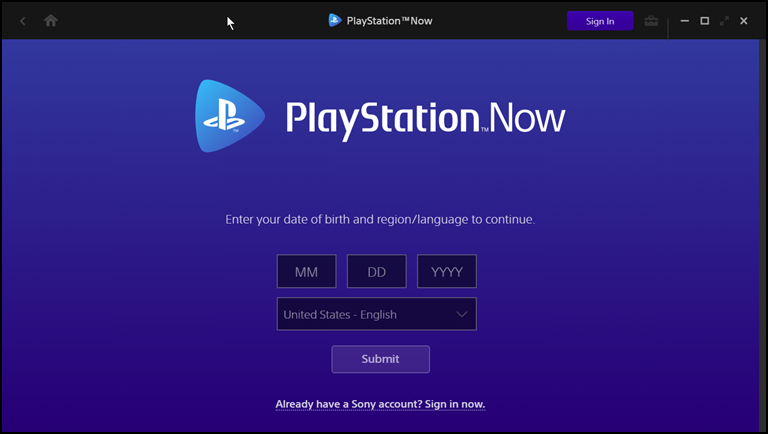
PlayStation Now is a cloud gaming service that allows you to play PS games on your laptop. It is not free; you need to purchase a monthly, quarterly, or yearly subscription plan. You can use this method if all else fails and you want to try something different. The best part is that you don’t even need the PS4 or PS5 console to use PS Now.
Sony operates a huge network of PS4s in their facility, and they may be rented whenever you need them. It’s like a virtual gaming machine in a sense.
To get this up and running, you’ll need a fast and dependable internet connection. This is an excellent choice if you don’t own a gaming laptop or computer because all of the graphical rendering and processing is handled on the server’s end, with just the media and controls accessible to you.
To download and use the PS Now, follow these steps:
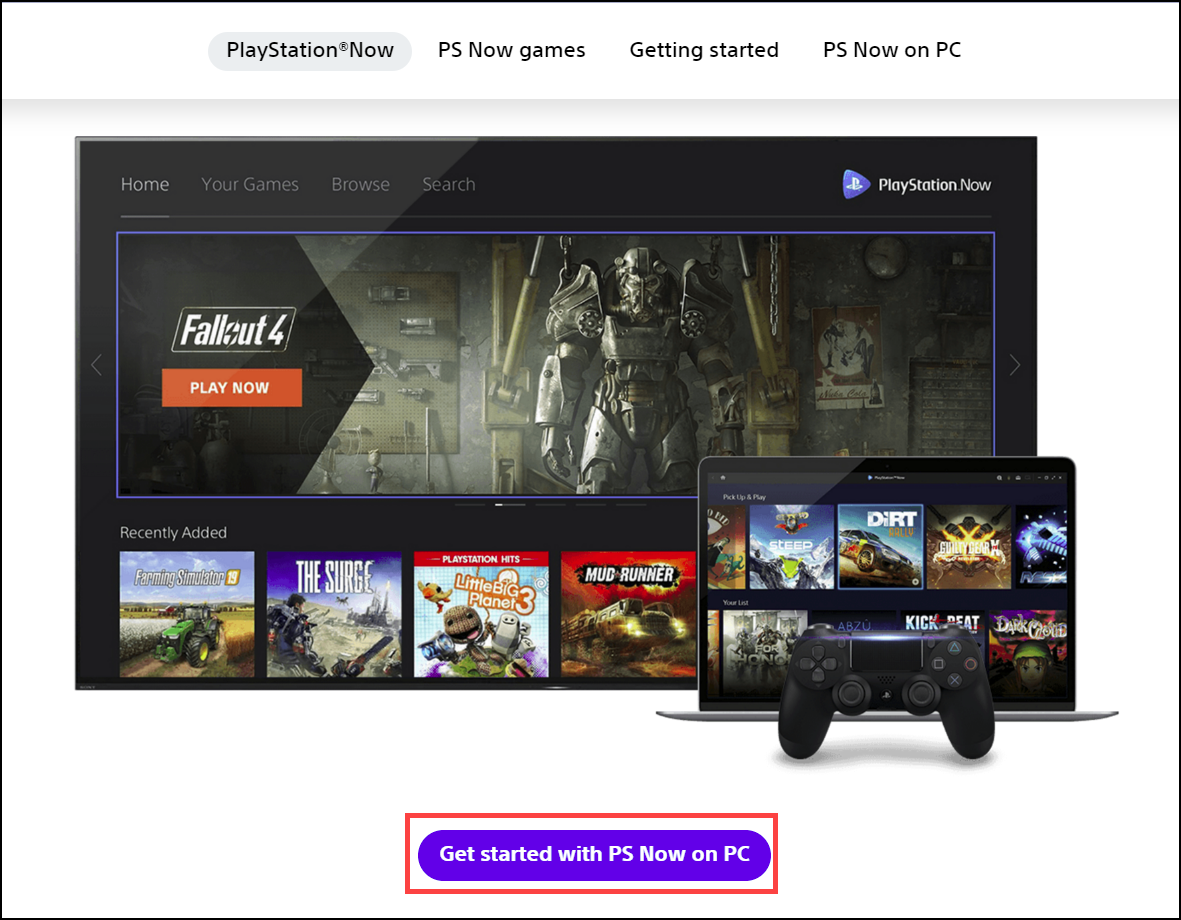
- Download PS Now from Sony’s official website.

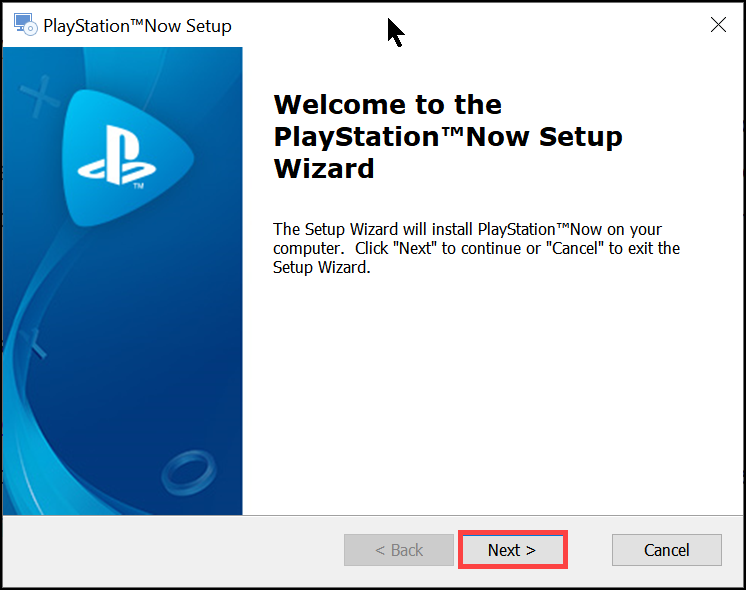
- After downloading launch the installer and follow the on-screen instructions to install.

- Upon installation, launch PlayStation Now.
- Next, set up your Sony account and select a subscription plan.

- Once done, get your favorite games and start playing.
Frequently Asked Questions
Do I Have to Use Remote Play To Play The PS4 On My Laptop?
Remote Play is the most efficient way to play PS4 games on your laptop. However, there are other ways too, which are explained in this post. So, it is not necessary to use Remote Play to play PS4.
Will My PS4 Run Smoothly On My Laptop?
It depends on the game you’re playing. If it’s a graphically demanding game, then yes, your laptop will have to do some extra work, and the graphics might not be as smooth as they would be on a console or PC. However, if you’re playing a less demanding game, your PS4 should run just fine on your laptop.
How Do I Know If My Laptop Is HDMI Input Or Output?
If you’re not sure whether your laptop is HDMI input or output, you can check the specifications of your laptop online or in the manual. Also, most ports on laptops are labeled, so you should first check that.
Can I use my laptop as a monitor for PS5?
Yes, like PS4, you can use the laptop as a monitor for PS5 as well. Just follow the same procedure as listed in this post.
Final Words
So, there you have it! Two simple methods on how to use your laptop as a monitor for PS4 without HDMI, and one method with HDMI. If you’re looking for an easy way to play your console games on a bigger screen, or if you want to record and broadcast your gameplay, then these methods are perfect for you. Just make sure that you have the right hardware and a good internet connection, and you’re all set.

Ken D
Nice, that capture card is handy
Amanda Bennett
I’m kinda scared my laptop might get a virus if I connect it as a monitor for PS5…
Irene
Connecting your laptop as a monitor for your PS5 won’t expose it to viruses. The connection is solely visual and doesn’t involve data transfer susceptible to viruses. Simply use the appropriate cables or software for seamless display.
Carrie Dennis
This is awesome! This really helped out as I was about to splurge on a TV.. Thanks again for saving me some $$$!