



Efficiency is the backbone of modern computing. While software has eliminated much manual labor, many professionals still lose hours every month to repetitive keystrokes and navigation. Whether you are a developer auditing code or an office power user managing spreadsheets, these minor delays add up to significant lost productivity.
Keyboard macros offer a professional solution by condensing a complex series of instructions into a single command. This guide leverages years of Windows optimization experience to show you exactly how to record and deploy macros on Windows 10 and 11 to reclaim your time.
Table of Contents
What are Keyboard Macros?
In the world of computing, a macro is a single command that can execute a series of instructions. So, instead of performing these instructions manually, you can run a single command.
For example, we can consider the case of Ctrl + C and Ctrl + V, which are used for copying and pasting, respectively. If these shortcuts did not exist, you would have to Right-click -> Copy or Edit -> Copy every time you wanted to copy something to your computer’s clipboard. However, these are basic options, and most people know about them.
When we think about keyboard macros, though, we have to prioritize productivity. Suppose your work wants you to open a program multiple times a day – say, Photoshop. Normally, you will have to click on the desktop shortcut or launch Photoshop from the Start Menu. On a single day, this task can be repetitive, right? Well, keyboard macros solve this issue by creating a simple keyboard shortcut that can launch Photoshop when you need it.
Beyond simple app launches like Photoshop, macros are essential for complex data entry, repetitive formatting, and multi-step system configurations. Our testing across various Windows builds confirms that while the setup is straightforward, choosing the right trigger is vital for stability. In the following sections, we provide a field-tested walkthrough for both Windows 10 and 11 to ensure your automation remains seamless and error-free.
Top Methods to Automate Tasks with Windows Keyboard Macros
As of now, you can use two major ways to create keyboard macros.
Shortcut Key Function in Windows
Windows allows you to assign a keyboard combination to a shortcut on the desktop. You can use this feature to launch programs and features on your PC. It is the simplest way to create a keyboard shortcut on Windows. However, this process can be too simple at times. Therefore, you will not have much control over how the macro plays out. We recommend this option if you simply want to create keyboard macros.
Using a Third-party Macro Recorder
While Windows lacks a native, high-level macro recorder for complex workflows, veteran power users often turn to vetted third-party solutions. Based on industry standards, tools like Macro Recorder and Macro Scheduler provide the granular control necessary for advanced automation. These professional-grade utilities allow you to record precise mouse movements and keystrokes for infinite replay, offering a level of reliability and sophisticated logic that basic system shortcuts cannot match.
For instance, if you use Macro Recorder, you can record mouse and keyboard actions for infinite replay. You can use this feature to record such a complex task and create macros for Windows. Then, in a single click, you can launch the macro, and the task will be executed. In short, a third-party macro recorder can help you automate your computer experience from top to bottom.
Step-by-Step Guide: Creating Keyboard Macros in Windows 10 and 11
You can follow the steps we have given below to create keyboard macros on Windows 10 and 11.
Note: This process of creating keyboard macros for Windows will not work unless you have a shortcut for the app/feature you want to launch. So, the first part of the process deals with creating that shortcut. For reference purposes, we have shown how you can open the Microsoft Excel app using a keyboard macro.
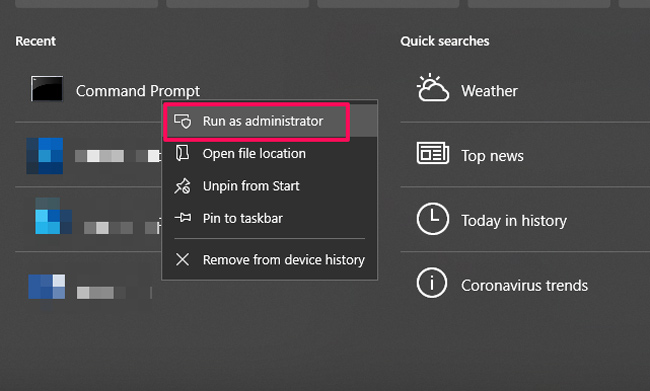
- Open the Start Menu and search for Command Prompt.
- Right-click on the Command Prompt link and choose Open as Administrator

- You will have to click on Yes when the UAC window pops up
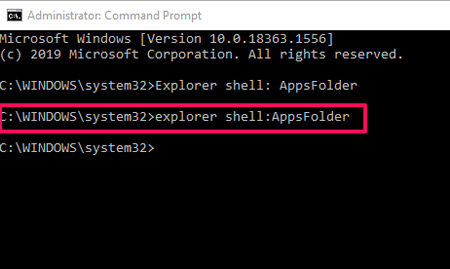
- When you see the Windows Command Prompt, enter the command explorer shell: AppsFolder

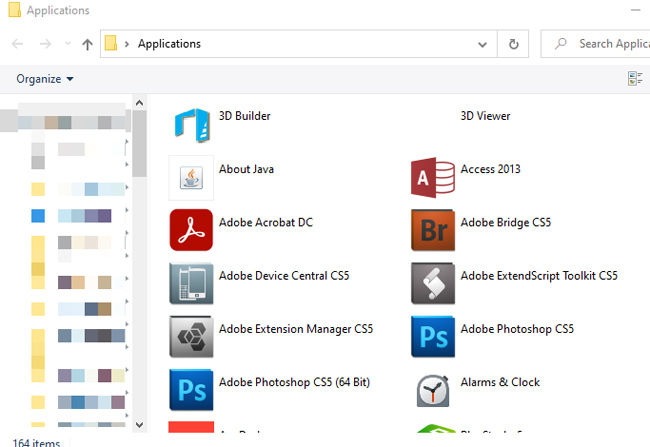
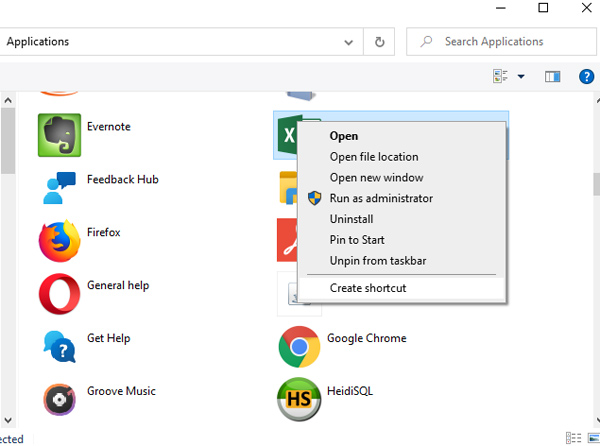
- Now, you can see a folder filled with all the applications and features on your Windows PC

- Right-click on Excel and choose ‘Create Shortcut.’

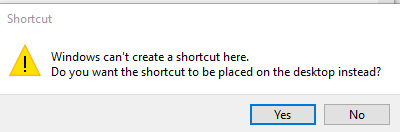
- You may see an error message saying that Windows cannot create a shortcut here. Click on Yes to proceed.

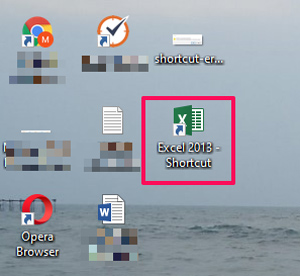
- You can now find a shortcut to Excel on your Desktop

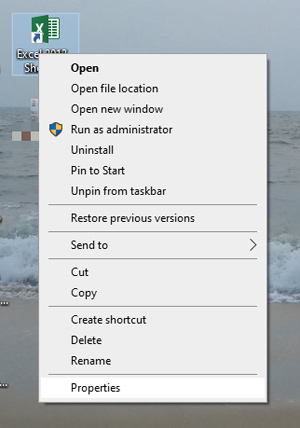
- Right-click on the shortcut and choose ‘Properties.’

- Go to the Shortcut tab and provide the Shortcut key that you prefer

- Now, click OK to proceed
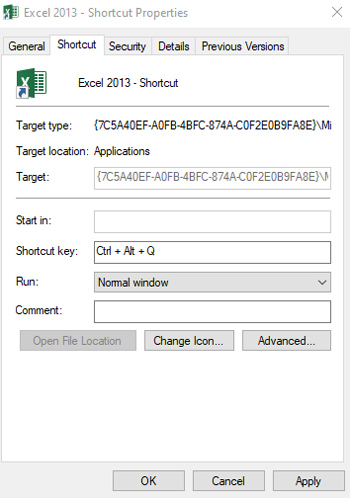
That’s it; you have successfully created a keyboard macro for launching Excel on your computer. The next time you want to launch Excel, you can press the shortcut key that you have created.
In the same way, you can create a variety of keyboard combinations to launch multiple programs and run a variety of actions. If you want to explore other ways of running the macro, we recommend that you choose a third-party macro recorder. With these recorders, you are not limited to opening apps. Instead, you will be able to automate almost every aspect of computing.
Frequently Asked Questions

What are keyboard macros?
Keyboard macros are detailed keyboard shortcuts that perform an extensive task. Once you have set up one keyboard macro, you can save a lot of time. For instance, if you set up a keyboard macro for opening the Control Panel on your computer, it means you do not have to open it manually.
Is there a default Windows 10 macro recorder?
Unfortunately, Windows 10 does not have a default macro recorder. It means you cannot record macros via the Windows Operating System. On the bright side, you can explore a variety of macro recorders available for Windows. These programs will help you create detailed macros in no time.
How to create Hotkeys on Windows?
To create hotkeys on Windows, you will have to use a third-party program. However, if you are using mice or keyboards from Microsoft, you can resort to the Keyboard Center app from Microsoft. You will be able to assign hotkeys and customize them as per your needs.
The Bottom Line
When used properly, keyboard macros can help you save a lot of time and effort. For those who have to do repetitive tasks every day, keyboard macros are a blessing, indeed. At the end of the day, setting up these macros is not a big deal, either. And you can use the macro recorder for Windows if you need advanced control. Which keyboard macros do you use the most? Do let us know through your comments.

Arthur
it cleared up the basic concepts for me in a few minutes. thanks to you!! now my work is much faster and efficient.