



Connecting your HP printer to a wireless network should be seamless, but the elusive 8-digit WPS PIN often creates a technical roadblock. Whether you are using an OfficeJet with a touchscreen or a DeskJet without a display, finding this unique security code is the key to a stable connection.
This guide draws on years of hardware troubleshooting experience to show you exactly how to generate and locate your PIN in seconds.
WPS Pin on HP Printer
The WPS Pin is a one-of-a-kind eight-digit number generated by the HP printer for wireless communication with routers. It is only compatible with a wireless router. WPS Pins are like secret passwords between your devices.
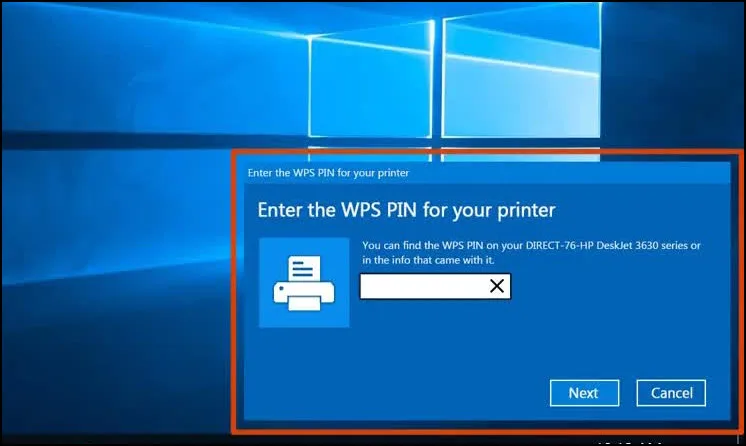
The WPS PIN serves as a critical security layer, acting as a unique 8-digit handshake between your HP hardware and the router. Unlike open connections, this protocol ensures that unauthorised users in shared environments, like apartment complexes or small offices, cannot access your print queue. As an industry standard for wireless security, mastering the WPS PIN setup is the most reliable way to maintain a private, encrypted printing environment.
Locating the WPS PIN on Different HP Printer Models
In most latest HP wireless printers, like HP Officejet 4650, HP Laserjet WPS, and more, the WPS pin is displayed on the printer screen. If you look at the printer, you’ll see a tiny screen with a WPS pin on it, which is used for wireless connection. In such a case, you can easily find the WPS pin on the HP printer.
However, there are some other HP printers, like the HP Deskjet 2600, that do not have an LED screen to display the WPS pin. Regardless, you need a WPS pin for these HP printers, too. So, how do you find the WPS pin on these printers? We will find out in the next section.
Choosing the Right WPS Connection: Push Button vs. PIN Code
As mentioned above, when it comes to wireless HP printers, you have two options: One that comes with an LED screen for display and one without an LED display.
So, based on the type of printer you have, there are two types of WPS Connections for HP Printers:
- WPS Push Button: This is for the printers that do not come with an LED screen.
- WPS PIN Code: This is for the printers with LED screens.
Connect the HP Printer with the WPS Button
If you are connecting a printer to a computer that does not have a screen or control panel, use the following steps:
- Switch ON the printer and make sure that the device (computer or phone) from which you want to take the printout is connected to the same network to which you are going to connect your printer. Basically, both the device and the printer must be connected to the same network.
- After the printer is turned ON, press and hold the Cancel button and the Wireless button for a few seconds.
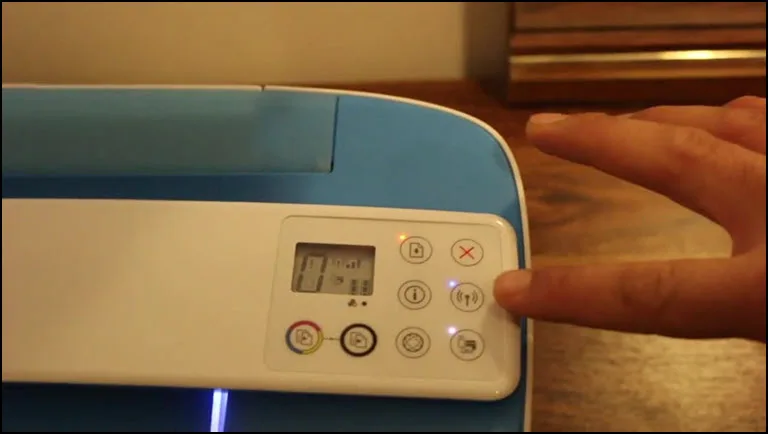
- Release the buttons when you see the power button start blinking.
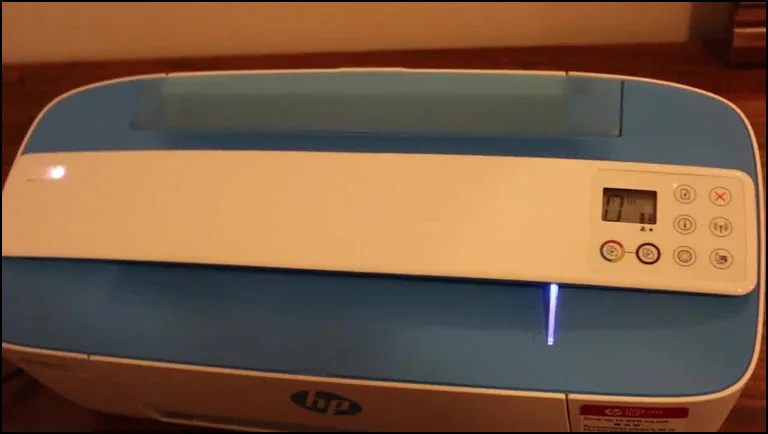
- You will now notice that the wireless button has started to blink, which indicates that the printer is ready to get connected through a WPS button.
- Now check your wireless Router and on the backside of it, you will find a WPS Button.
- Press and hold the WPS button for a few seconds. You will notice that the WPS light will start blinking on the router.
- Wait for a minute or two till the lights on both the printer and router stop blinking.
- Your printer will be connected to the WiFi router via the WPS button.
In case your printer has an LED screen, here is how to use the WPS button to connect it to the network:
- Restart your printer.
- On the control panel of the printer, press the wireless button. It will start blinking.
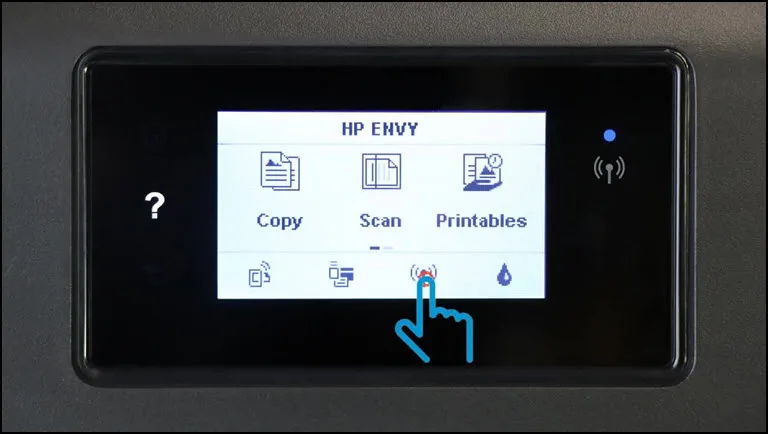
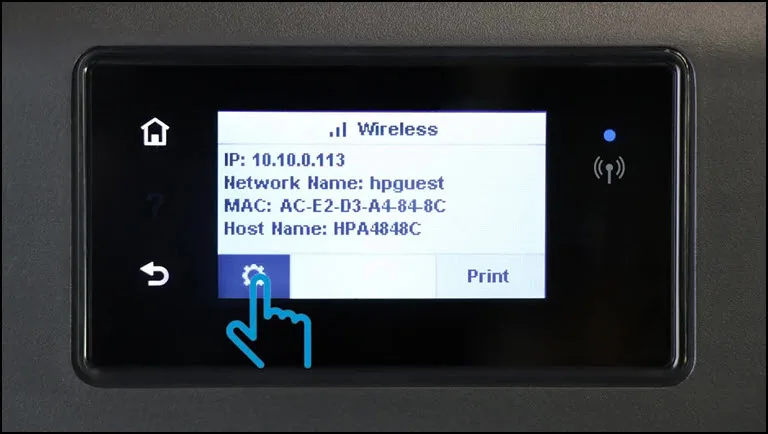
- Tap on the Settings icon.
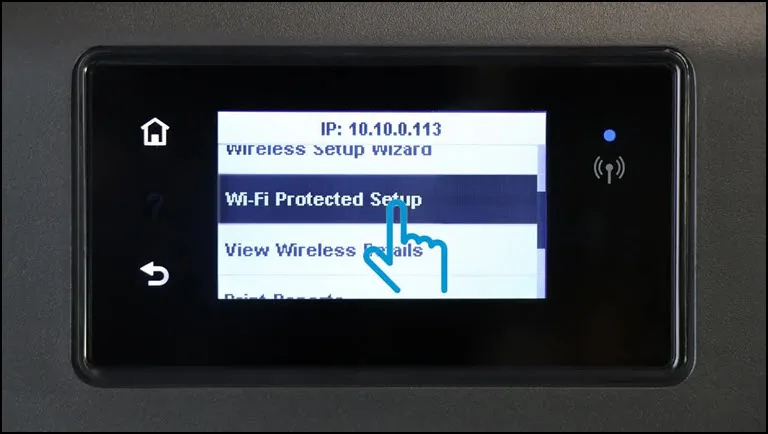
- On your printer’s LED screen, look for the “WiFi Protected Setup” option to select it.
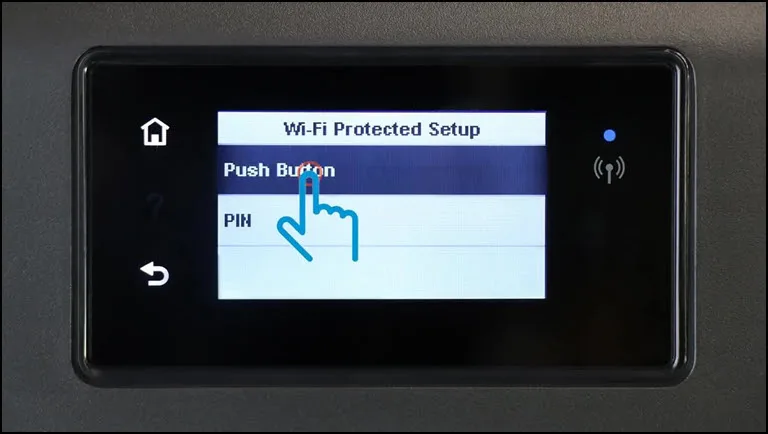
- Next, select the Push Button and then tap Start.
- Now, on your router, press and hold the WPS button until the WPS light blinks.
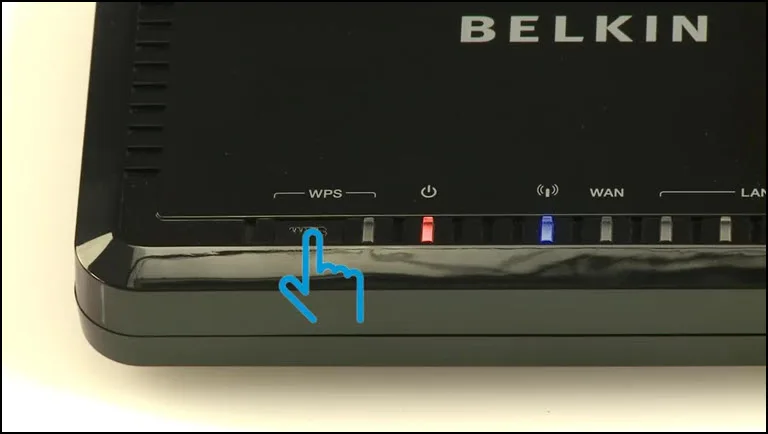
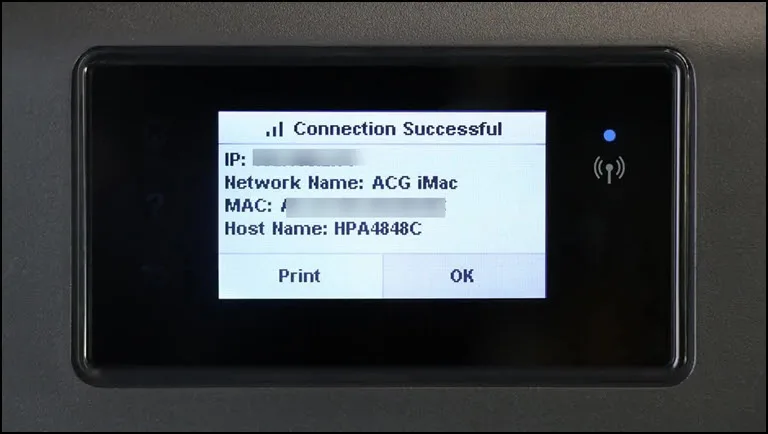
- In about 2-3 minutes, you will notice that the lights on the printer and router will stop blinking, and you will see the notification of Connection Successful on the printer screen.
How to Find the WPS Pin for an HP Printer and Connect it to WiFi?
If you have an HP printer with a screen or control panel, search for the WPS pin there and connect it to the wireless network. Here are the steps:
- Restart your printer.
- On the control panel of the printer, press the wireless button. It will start blinking.
- Tap on the Settings icon.
- On your printer’s LED screen, look for the “WiFi Protected Setup” option to select it.
- Next, tap on the PIN option.
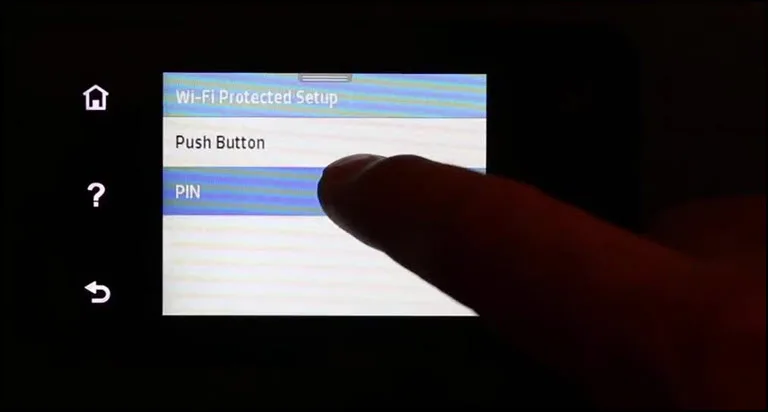
- The WPS PIN will be displayed, and as per the instructions, you have to enter this PIN on the web-based configuration page of your browser.
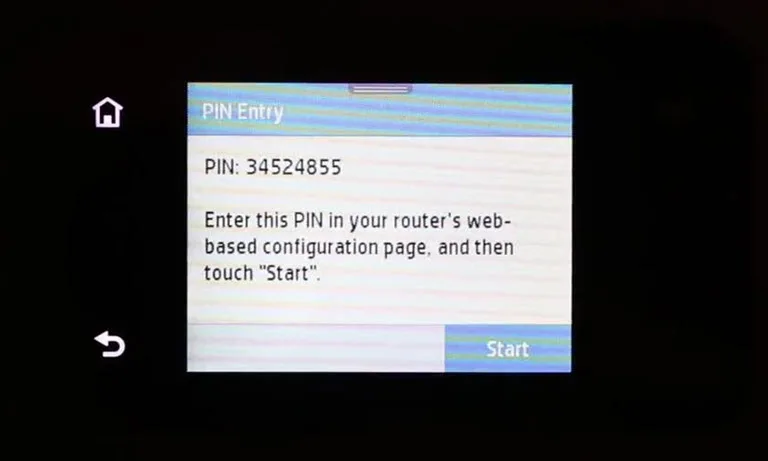
- After entering the PIN on your browser page, tap on the Start button of the printer.
That’s it. Your HP printer will be connected to the network via a WPS pin. From a technical support perspective, it is vital to remember that the WPS PIN is highly time sensitive. HP printers generate these codes dynamically, and they typically expire after a short window (often 10 to 90 seconds, depending on the firmware version). If the connection fails, it is usually because the PIN expired before it was entered into the router interface. Simply restart the process on your control panel to generate a fresh, active code.
Frequently Asked Questions

What Is the WPS Pin in Printers?
How Do I Enable WPS on My HP Printer?
Summing Up
So this is how you can connect your HP printer with a WPS button or pin. If you have any other queries, please feel free to reach out to us in the comment section below, and we will be happy to help. Stay tuned for more such tips and tricks.
Happy printing!

Leave a comment
Have something to say about this article? Add your comment and start the discussion.