

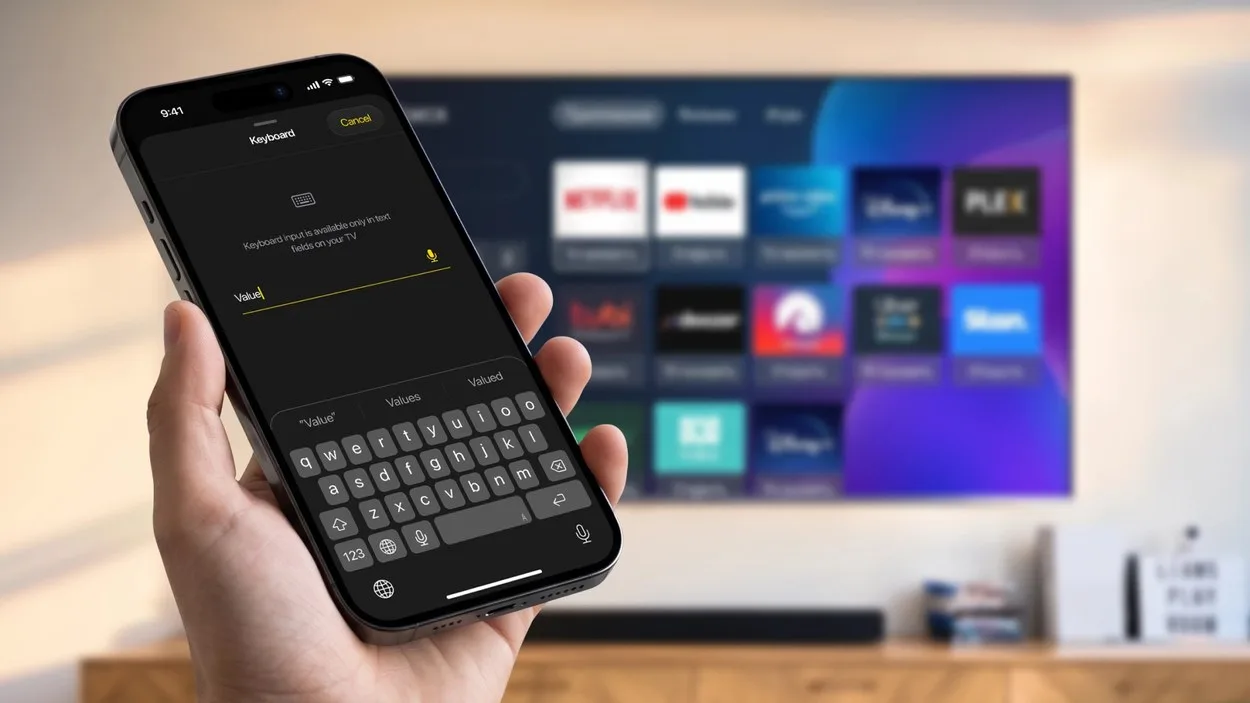

I use my Smart TV for plenty of things, but there is one part of the experience that still feels like it belongs to an older generation of technology: searching.
The TV itself is perfectly capable of finding movies, shows, videos, and apps. The frustrating part is entering the search.
A physical remote just isn’t the most convenient keyboard.
So instead of trying to make the remote do something it wasn’t designed for, I started using my iPhone for text input.
Finding Something to Watch Shouldn’t Take Five Minutes
The Content Isn’t the Problem
Smart TVs have access to an enormous amount of content.
The problem is getting to a specific piece of content quickly.
If I want to search for a particular movie or YouTube video, I don’t want to spend several minutes moving between letters on the TV screen.
This is especially noticeable when the search query is longer than a few words.
The Remote Makes Every Letter a Separate Action
With a traditional remote, typing often means navigating through an on-screen keyboard and selecting individual letters.
It works, but it doesn’t feel particularly efficient.
Your phone, on the other hand, already has a keyboard designed specifically for entering text quickly.
That’s an obvious advantage when the goal is simply to search.
Your Phone Can Handle the Typing
TVRem Puts the Keyboard Where It Makes Sense
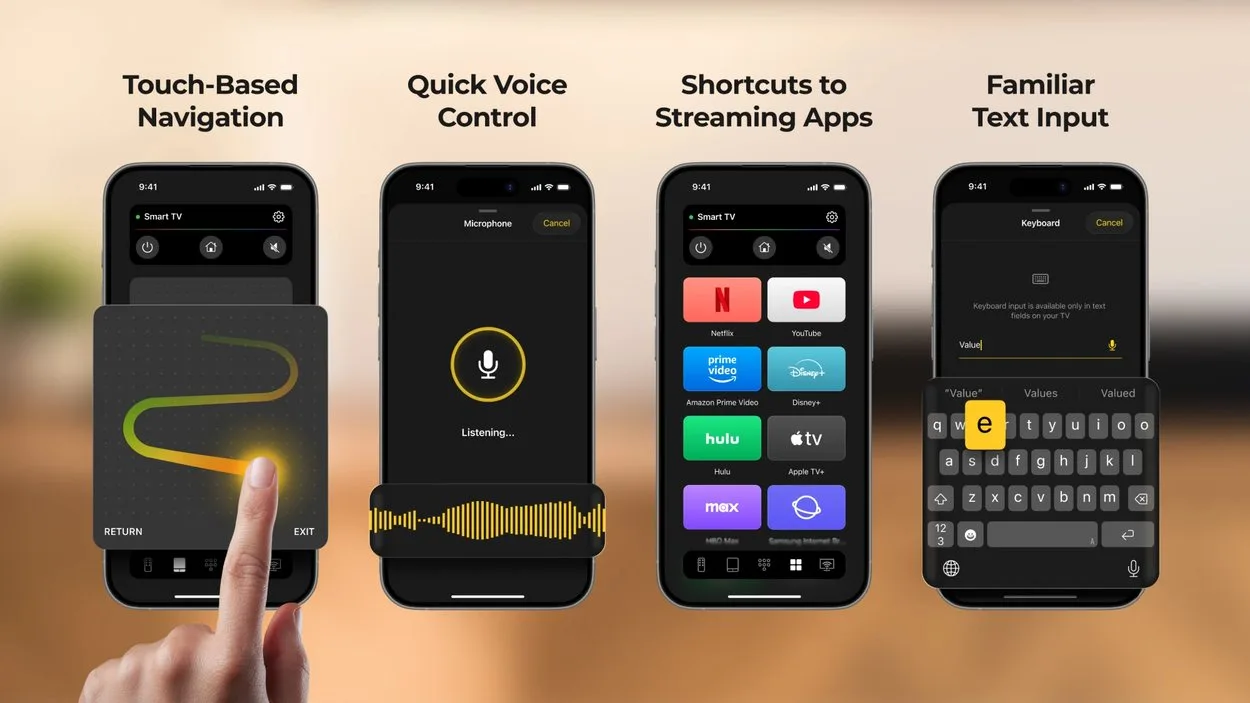
TVRem turns an iPhone or iPad into a Smart TV remote and includes keyboard input for situations where you need to type.
That means I can use my phone for the search itself and then continue using the remote interface to control the TV.
It’s a simple division of tasks:
- Phone keyboard → enter the search
- TV → show the results
- Remote controls → navigate and watch
It makes the whole process feel less awkward.
It’s Useful for More Than Movie Titles
Search Anything You Would Normally Type
The keyboard isn’t only useful when searching for a movie.
I can use it for things like:
- YouTube videos
- names of actors or creators
- specific shows
- channels
- longer search phrases
- other text fields where the TV requires input
Basically, whenever I see a text field on the TV, having my phone nearby becomes useful.
I Don’t Have to Keep Switching Between Devices
One Phone Can Handle the Whole Interaction
Another thing I like is that I don’t need a separate physical keyboard.
My iPhone is already next to me most of the time, so it can handle both the typing and the remote controls.
I can type a search, navigate the results, adjust the volume, move around the interface, and continue watching without looking for another device.
That makes more sense to me than having a traditional remote plus a separate keyboard.
The Experience Is Especially Noticeable With Longer Searches
Short Searches Are Fine, but Longer Ones Show the Real Difference
If I’m entering one or two letters, the TV’s keyboard isn’t a huge problem.
But try searching for a long movie title or a very specific YouTube video with a remote.
That’s when the difference becomes obvious.
Typing the same thing on a phone takes much less effort, and I don’t have to think about where each letter is on the TV screen.
A Better Way to Search on a Smart TV
A Smart TV is supposed to make finding content easier, but the traditional remote can still make text input feel unnecessarily complicated.
Using an iPhone as a remote doesn’t change how the TV works. It simply gives me a more convenient way to interact with it.
For anyone who searches frequently on their Smart TV, having a TV remote app with a keyboard is one of those features that seems minor until you actually start using it.

Leave a comment
Have something to say about this article? Add your comment and start the discussion.