




Windows has always been defined by its flexibility, but modern versions like Windows 11 have taken personalization to a new level. Beyond basic tweaks like macros or wallpaper changes, power users rely on advanced tools to overhaul their digital workspace.
Rainmeter stands as the gold standard for this transformation, allowing you to blend high-end aesthetics with real-time functional data. Whether you want a minimalist setup or a futuristic command center, the right theme can completely redefine your workflow.
What is Rainmeter and How Does It Transform Your Desktop?
As experts in Windows customization for over two decades, we have tested Rainmeter across every OS iteration from Windows XP to Windows 11. It is a robust, open-source desktop customization platform that enables the use of skins. These skins are more than just “skins” because they function as interactive widgets that track hardware performance, weather, and system resources in real time. Our testing confirms that when configured correctly, Rainmeter provides professional grade utility without compromising system stability.
One of the most notable features of Rainmeter is that there is a large collection of themes and the best Rainmeter skins that can be used to run the operating system. Also, the themes are available not just for the latest Windows operating system but for older versions like Windows 10 and Windows 8 as well. So, the user is bound to find one that is just right for use or for the moment.
How to Install and Use the Rainmeter Themes?
It must be said for Rainmeter that it is an open-source software product. This makes the product highly customizable, and it is for this reason that there are a lot of gorgeous Rainmeter skins and themes that are compatible with the Rainmeter software.
To use the Rainmeter themes and skins, it is necessary to first download and install the software from the official website. This is a straightforward affair with the user needing to just visit the official site and click on download and install.
Once the Rainmeter application has been installed on the computer, follow the listed steps to get to download the necessary themes and skins. This is a prerequisite to using the facility in the first place.
- Download and install the Rainmeter theme or skin from the site given.
- The themes generally come in a zip folder that needs to be extracted for use.
- Copy the Skin to the following destination
Computer > Documents > Rainmeter > Skins- Now, open up the Rainmeter application. The newly installed theme would be visible on the dashboard. Click on the theme or skin to activate it for use.
Best Rainmeter Skins for Windows 11 and 10 (Ranked)
The following desktop skins for Rainmeter can be used to change the PC experience.
1. Jarvis
Most adults would have come across the Iron Man series from Marvel Comics. It would be rather helpful to have a Man-Friday like Jarvis from the comic strip, and that is exactly what the Jarvis theme does to the PC. Installation is a simple affair with this best Rainmeter skin for Windows 10, and it brings a ton of features that would help the computer user get the most from their machine.
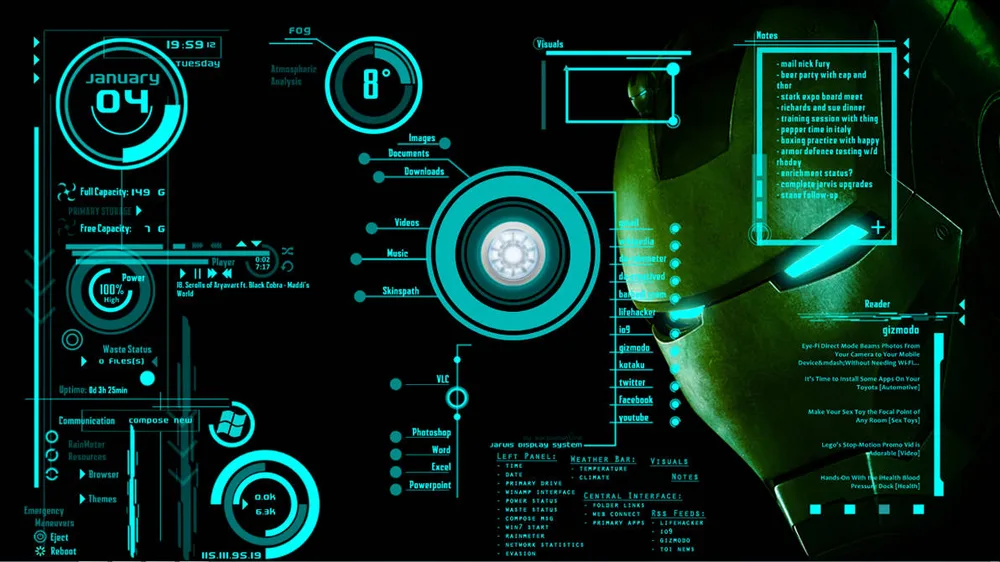
The Jarvis theme is highly customizable, and it is possible to arrange the constituents of the Rainmeter skin as the user likes them to be. The indicators give out the various operating parameters of the computer, displayed conveniently for the user to view. It is possible to display the date, time, temperature of the PC, storage capacity, etc., all on the dashboard of Jarvis.
2. Avengers Shield OS
This too is a skin that has been adapted from Marvel Comics and gets to display the vital performance characteristics of the PC on the monitor. Additionally, there are conveniently placed shortcuts to most commonly used applications like Chrome, Music, etc.
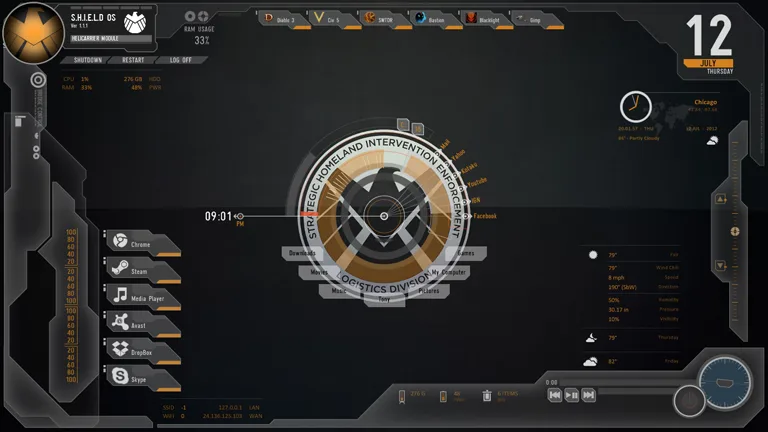
There are multiple controls for the most used features, like volume, restart, shutdown, etc. Statistics like the RAM usage, temperature of the core, and the like are displayed conveniently on the user interface.
3. Game of Thrones
This is a Rainmeter theme that brings to life all the qualities of Game of Thrones to the PC or laptop.
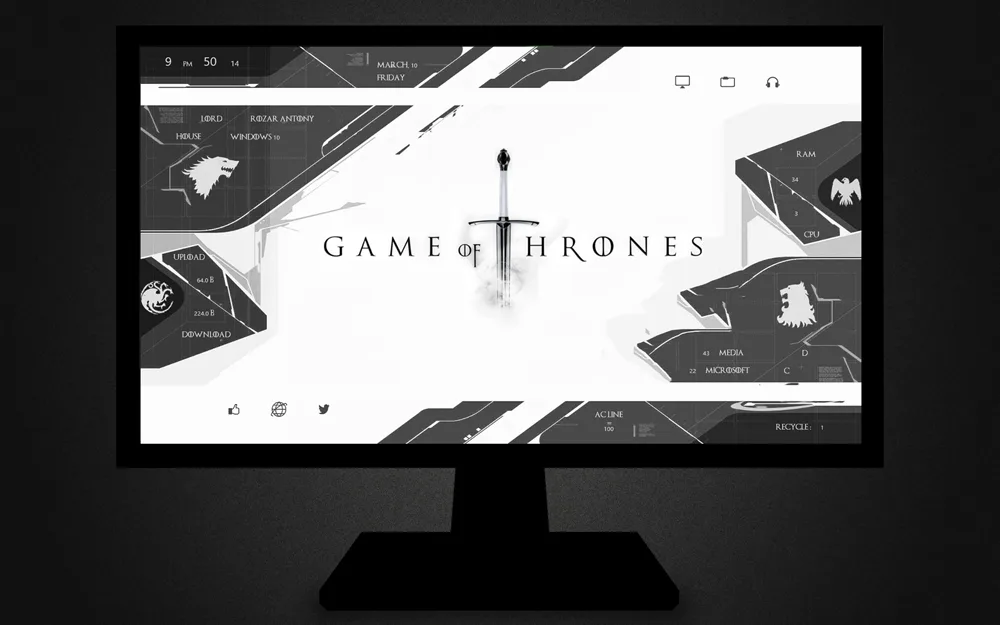
With this download, it is possible to have access to a manual that sets out exactly how the theme can be customized. Most important information, like storage capacity, processor speed, and the likes can be displayed on the dashboard.
4. Windows 2019
This Rainmeter skin presents the look of the Windows operating system sometime in the future.
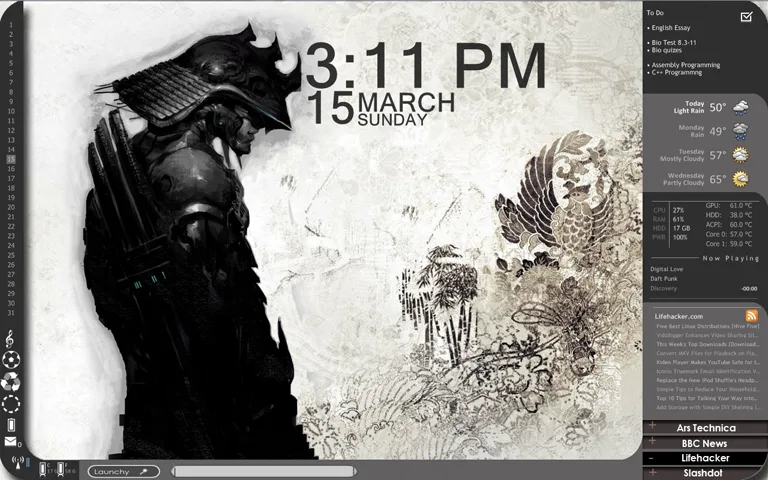
All aspects of the skin are customizable, including the appearance and presentation as well. You get to keep important information like a to-do list, system resources, weather information, and so on, on the dashboard. It must be said of the theme that it is rich in graphics and color themes.
5. Tech-A
Once a trend has been created with futuristic themes, it is usual to have more of them. Tech-A is another futuristic theme that gives the user the freedom to try out something new each day. Simple yet sophisticated enough to contain most of the required information on the dashboard, this is a theme that keeps people glued to their screens.
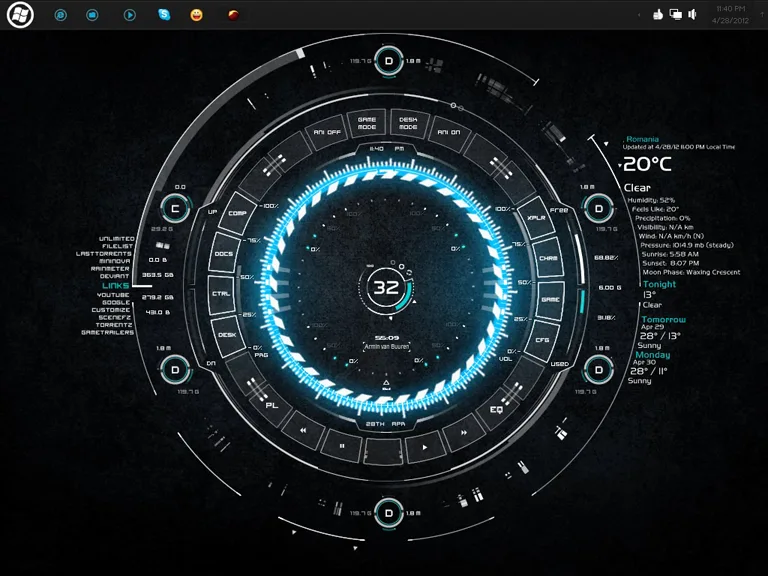
6. Senja Suite
With this theme, it is possible to make the PC display one of the most dynamic possible. At hand are some of the most promising customizations possible with Rainmeter themes.
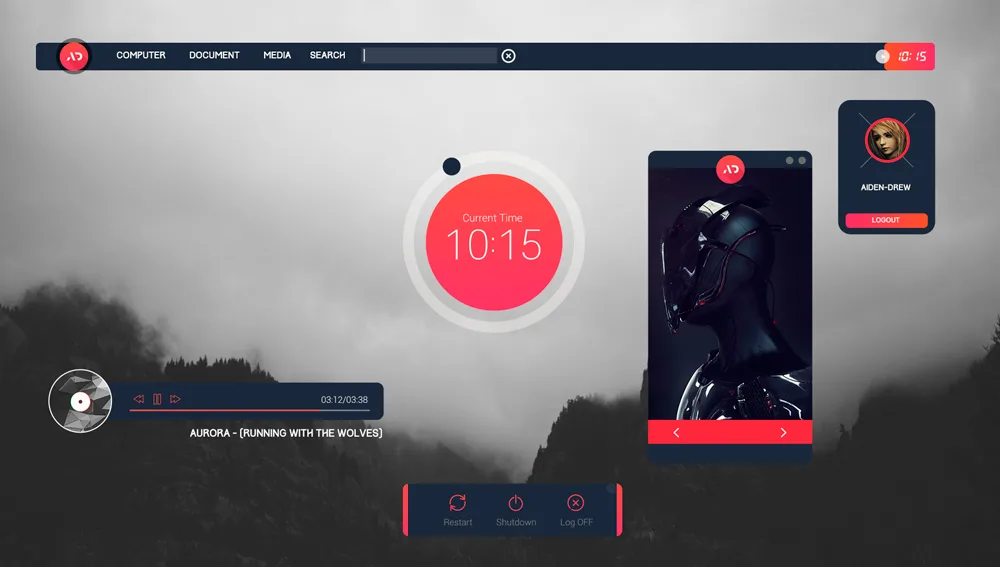
7. Aliens
The theme is designed to look like the control room of an alien spaceship. Something simple in appearance but packs in enough sophistication for every user.
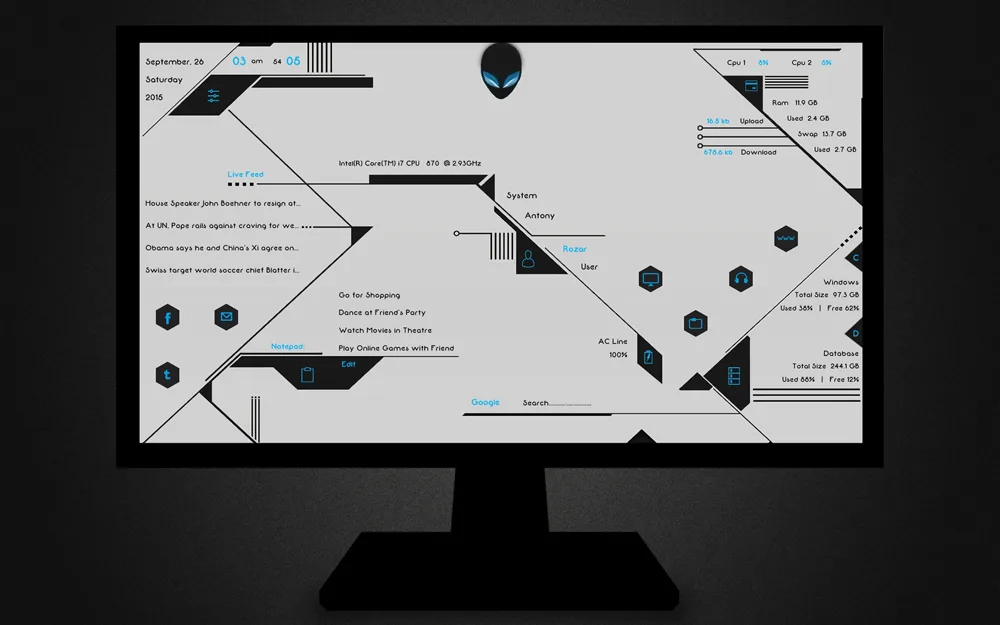
8. Newspaper Desktop
It is presented as the front page of a newspaper and makes for a simple-to-read presentation. A fair bit of customization is available with things like clock, Music Player, etc being on hand to make it work.
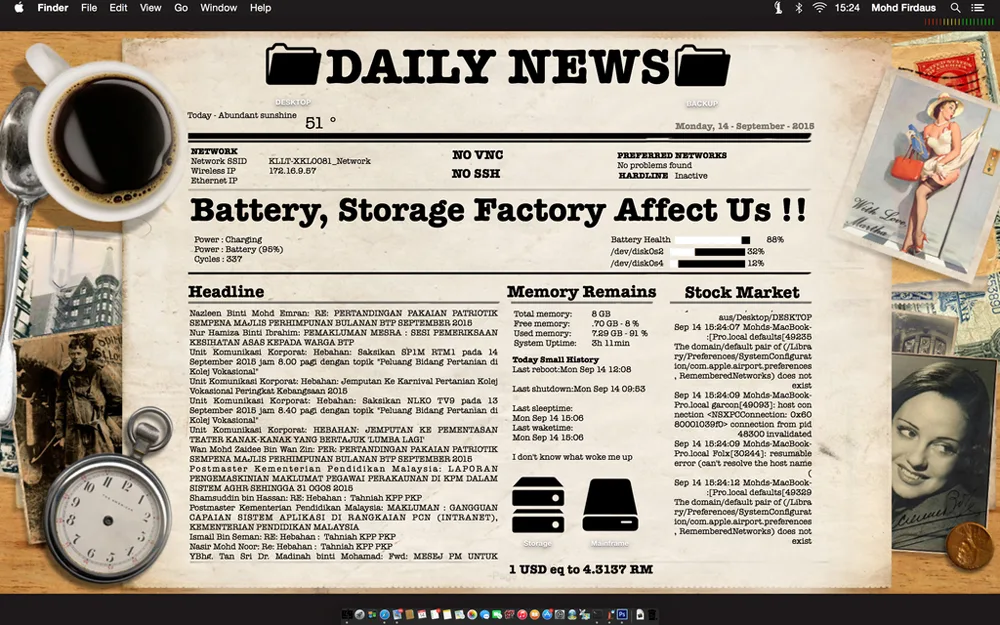
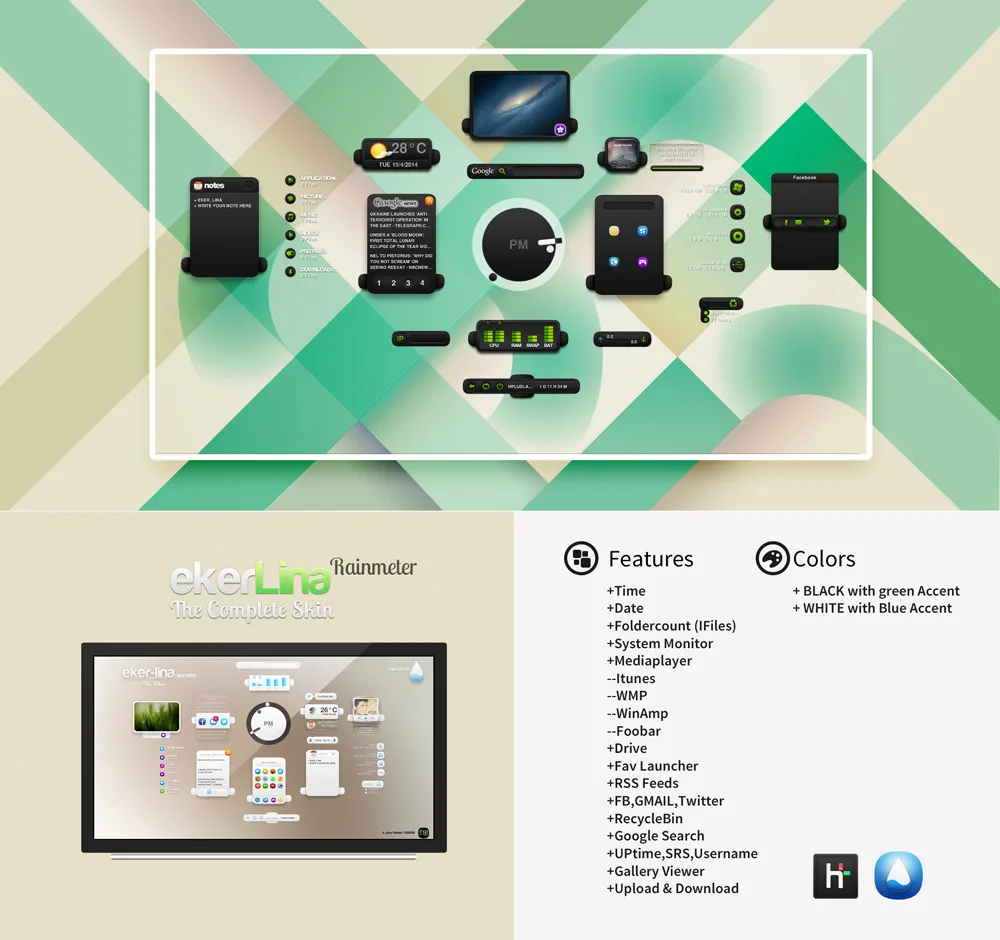
9. Eker Lina
Probably one of the simplest skins available to the user. It makes for easy and light use of the RAM.
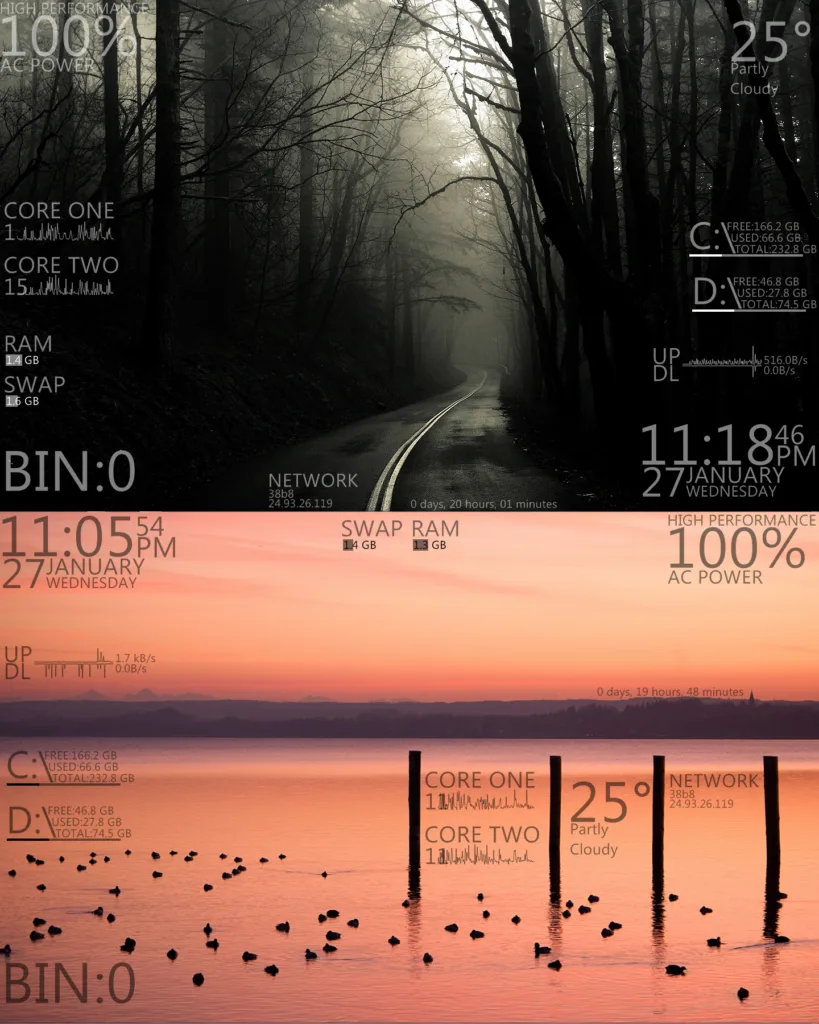
10. Flat
It’s a convenient tool to have that displays all the necessary information like system info, RAM storage, Clock speed, etc., on the dashboard.
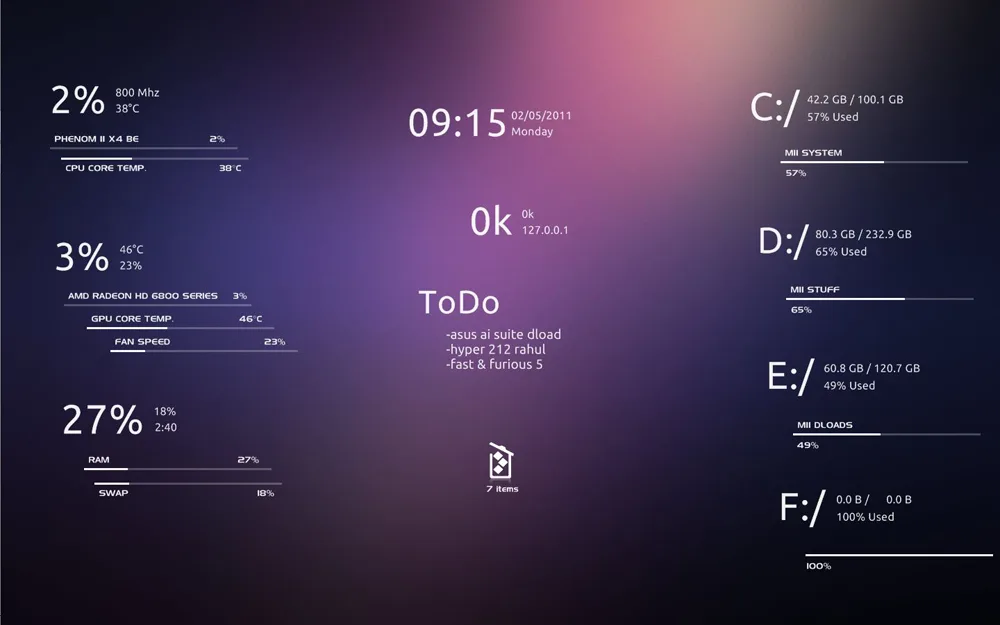
11. Mii system skin 2
This theme is inspired by Poiru’s pilot preview and displays CPU, GPU, RAM, Network, Time, etc. on the theme.
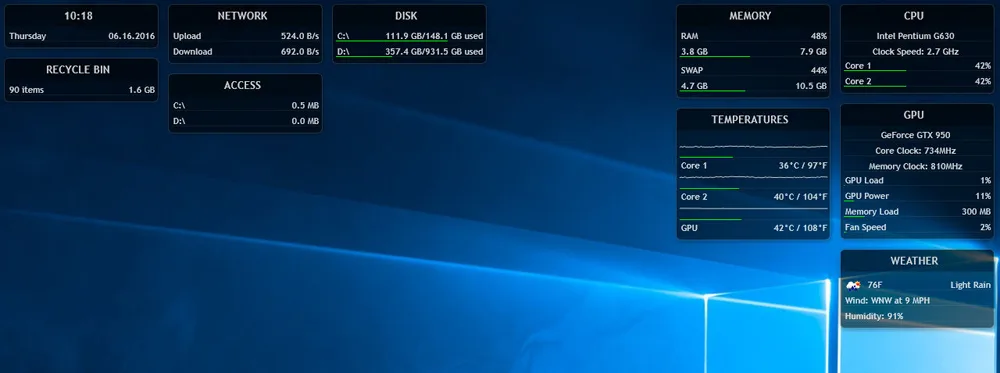
12. Illustro Monitor
As the name suggests, this theme illustrates the disk space, network usage, memory, GPU, etc., on the monitor screen.
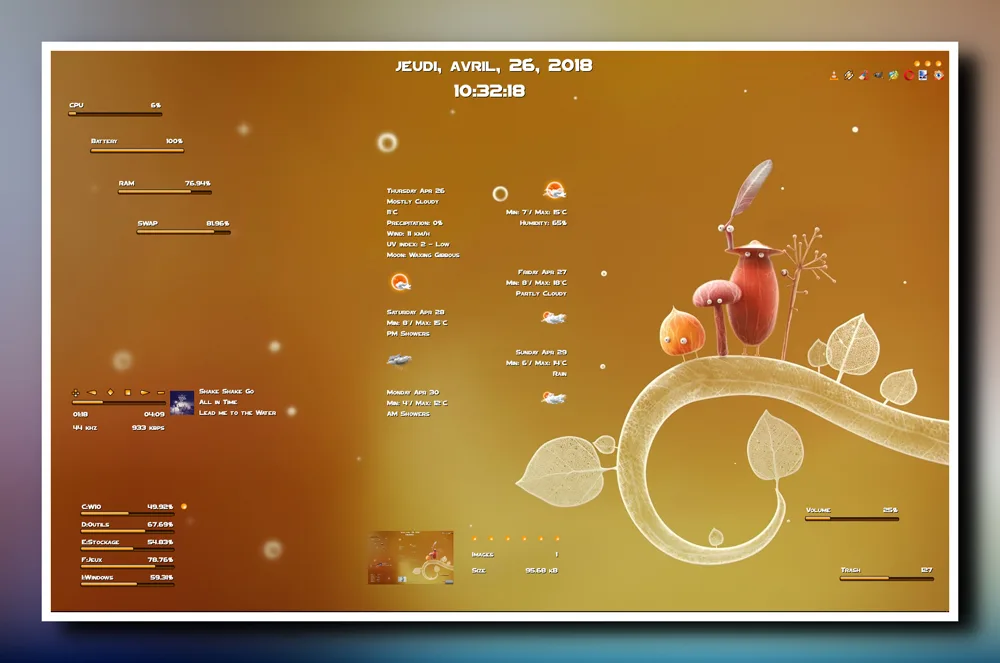
13. Botanicula VR 1.1
8 languages: English, French, Spanish, Italian, Portuguese, German, Russian & Serbian. Text color, font face, and font size can be modified. Easy configuration.
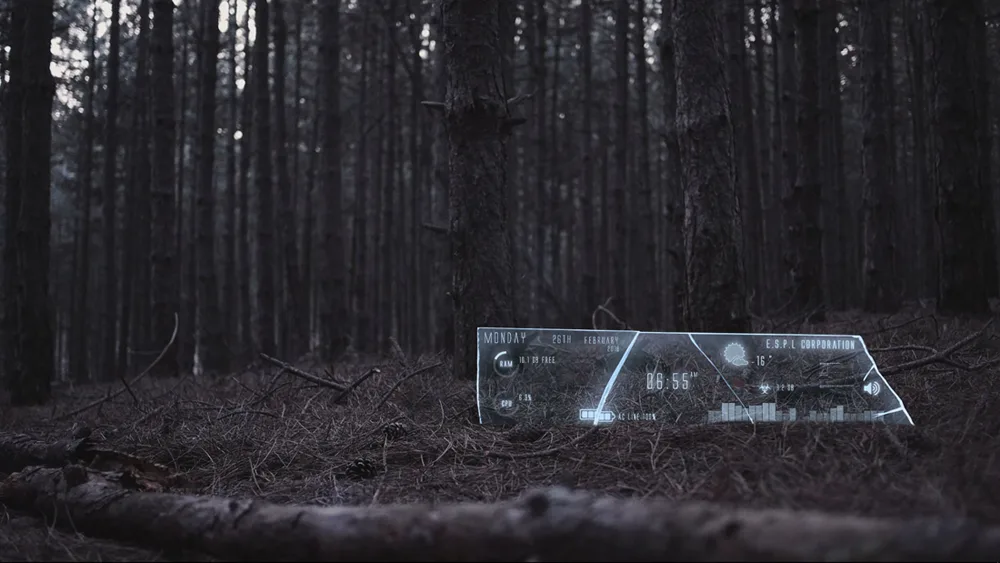
14. Glass Shards
Unusual but pretty interesting theme. A piece of shattered glass on the ground.
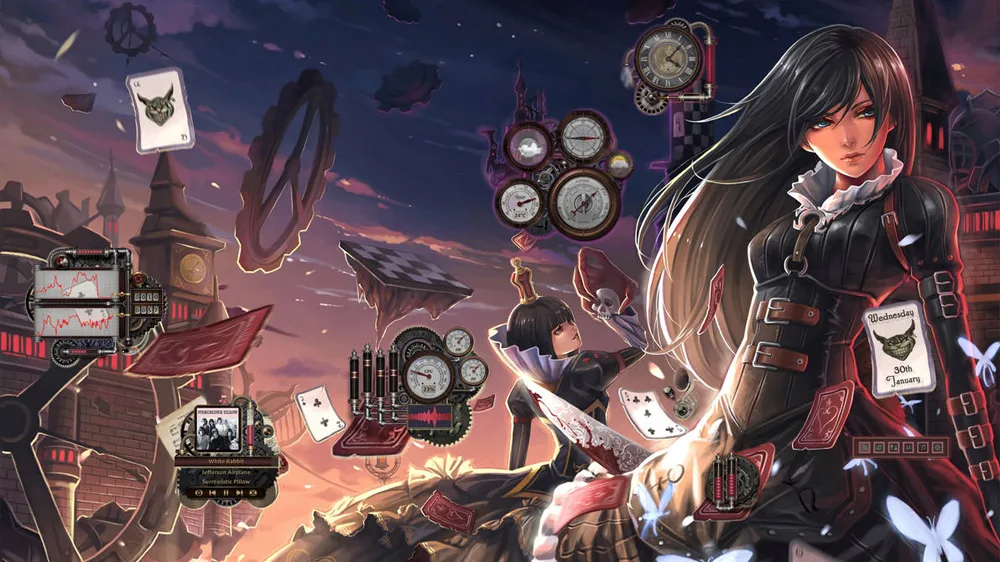
15. Alice-Reworked
digital art for an Alice Madness Returns FanArt book with an overlay of Rainmeter skins to add a little movement and display information on your desktop.
16. Dieselpunk HUD
17. Nelamint
18. Alphabar
19. MonsterCat Visualizer
20. Cleartext
21. Frost
22. VisBubble
23. Fizzualizer
24. Fountain of Colors
25. Figures
26. Genteel
27. Do I Need A Jacket
28. Simple Rainmeter
29. Weather
30. LIM1T
31. Astro Weather
32. Soonex Clock
33. Exmouth Black
34. La Compagnie des Ombres
35. Laro
36. Elegance 2
37. Dresses
38. Textime
39. Enigma
40. Mond
41. Valorant Rainmeter
42. Big Sur
Frequently Asked Questions

How to use Rainmeter skins?
What is Rainmeter? How does it work?
What are Rainmeter skins?
Does Rainmeter affect PC performance?
What should I look for in a Rainmeter skin for Windows 11?
Does Rainmeter use a lot of RAM?
Will Rainmeter slow my Computer?
Conclusion
One of the most desirable features of a PC or laptop is that it must be possible to customize the user experience to the greatest extent possible. With Rainmeter software, it is possible to customize the PC experience without actually getting into coding and such activity. Products like Rainmeter go on to make a complete PC experience, as it allows common folks to make some serious changes to the computer.

Ana S
Jarvis!!!!
Toni C
The one I like most had to be paid one 😔
Pearly
You can try out the free options as well.
John Benefield
very nice but I don’t recommend this for people who has a potato pc or wants the best fps possible